
How to see what changed since the last saved copy
A step-by-step run through the add-in on a cost model, Friday against Monday. Three steps in one column, and the finding it exists for is the one Excel cannot show you: a formula somebody replaced with a typed number.
The change you cannot see
Somebody clears =B3*C3 and types 1000 over it. The workbook still
calculates. The column still looks right. That number will never update again, and
no amount of staring at the current file reveals it — the evidence only exists in
the difference from yesterday's copy.
Every other comparison tool reports “these cells differ” and leaves you to work out which of the fourteen matter. This one separates them into four classes, and the order is the point:
-
A formula replaced by a value (C-01).
=SUM(B2:B9)is now4823. The silent one. - A formula that changed (C-02).
=B2*1.15is now=B2*1.2. - A value that changed (C-03). An input moved from 100 to 120 — usually the edit somebody meant to make.
- Formatting only (C-04). Bold, a fill, a number format. Off by default, because it is not a change to a model.
Cells that merely recalculated — same formula, different answer, because something upstream moved — are counted but not listed. They are the consequence of the edit, and listing them buries the edit under its own fallout.
Inserted rows do not break it
Insert one row at the top of a five-thousand-row sheet and a positional comparison reports five thousand differences. This one reports one insertion. Formulas are compared in R1C1 terms — the form that does not change when a formula moves — and the two sheets are aligned before a single cell is compared. Microsoft's own Spreadsheet Compare and Inquire both fall over here, and it is the main reason this exists.
Before you start
- Excel on Windows, Mac, or the web. The pane is the same on all three.
- The add-in installed. See the support page for that.
- The earlier version as a file you can pick. Excel's add-in API can only see the workbook hosting the pane, so the other version is read from disk. If it lives in OneDrive or SharePoint version history, download it first.
- Both files stay on this machine. The earlier one is read in the pane and uploaded nowhere, and neither file is written to. The privacy notice says so in full.
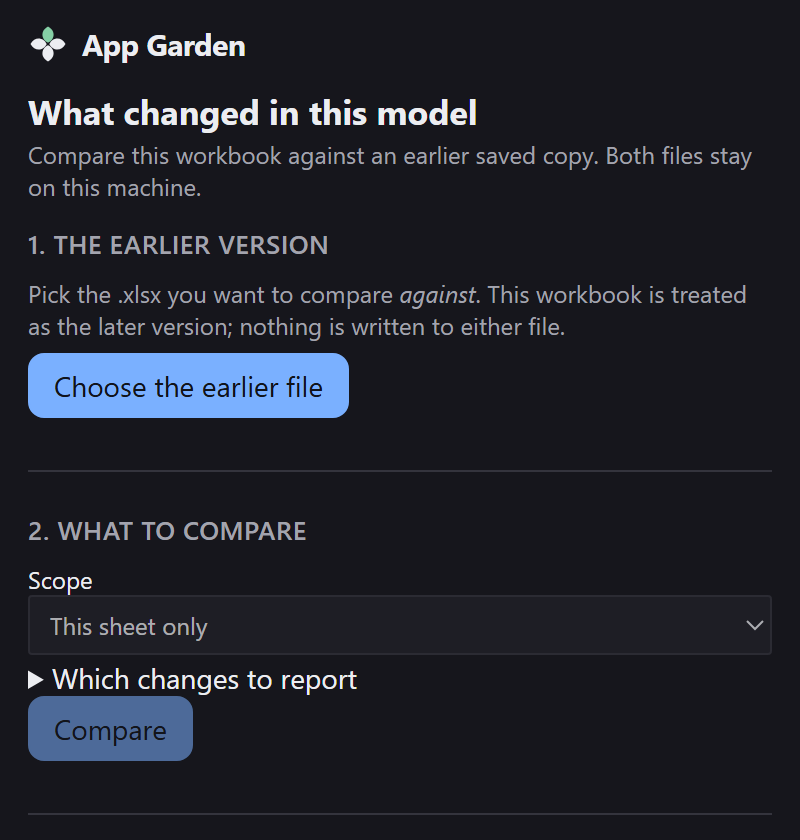
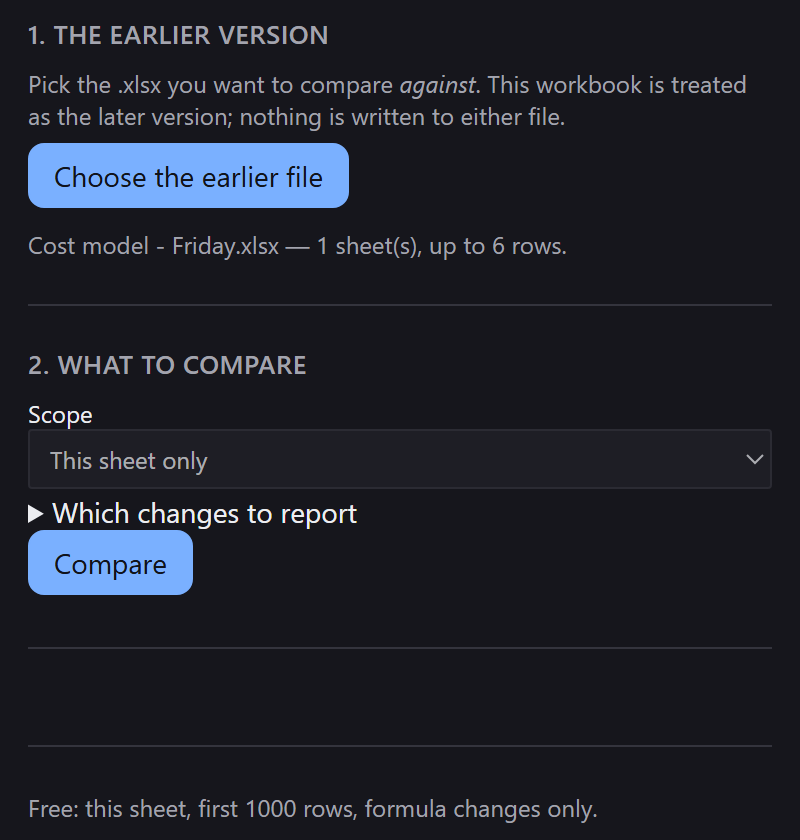
Step 1 — Choose the earlier version
Open the version you want to check, then Home › What changed. The workbook you have open is treated as the later version.
Step 2 — Say what to compare
Whole workbook or just this sheet, and which classes to report. The two formula classes are always on: they are the two that break models silently, so they are not offered as a choice.
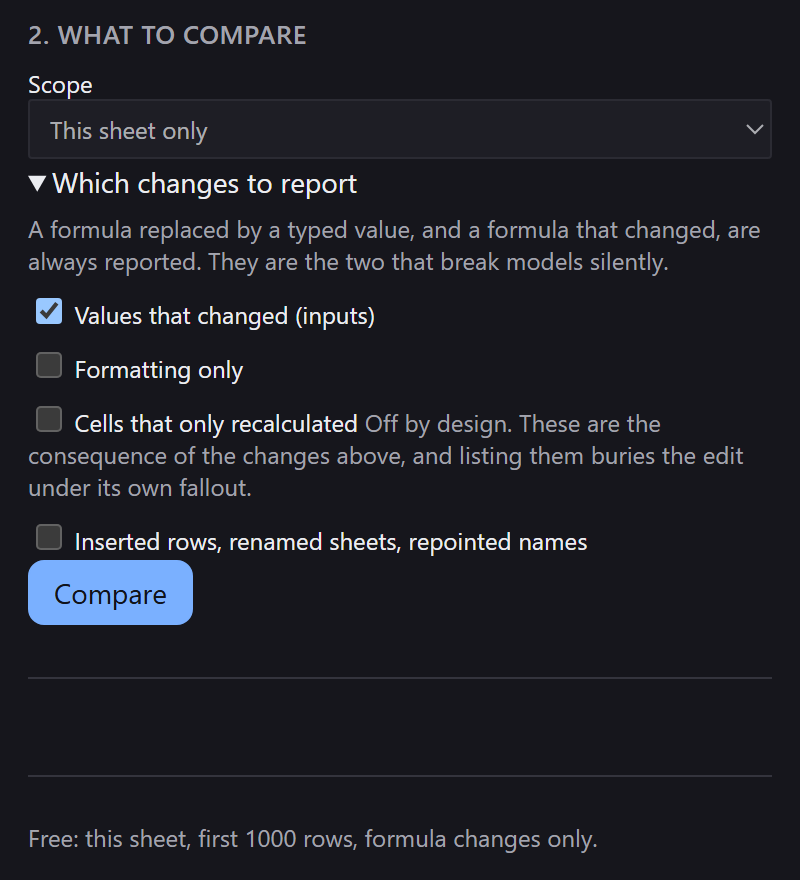
The free tier compares the active sheet, up to 1,000 rows, and reports the two formula classes. The line at the foot of the pane says exactly that, before you run anything.
Step 3 — Compare
The headline comes first, as a sentence, and then the count per class.
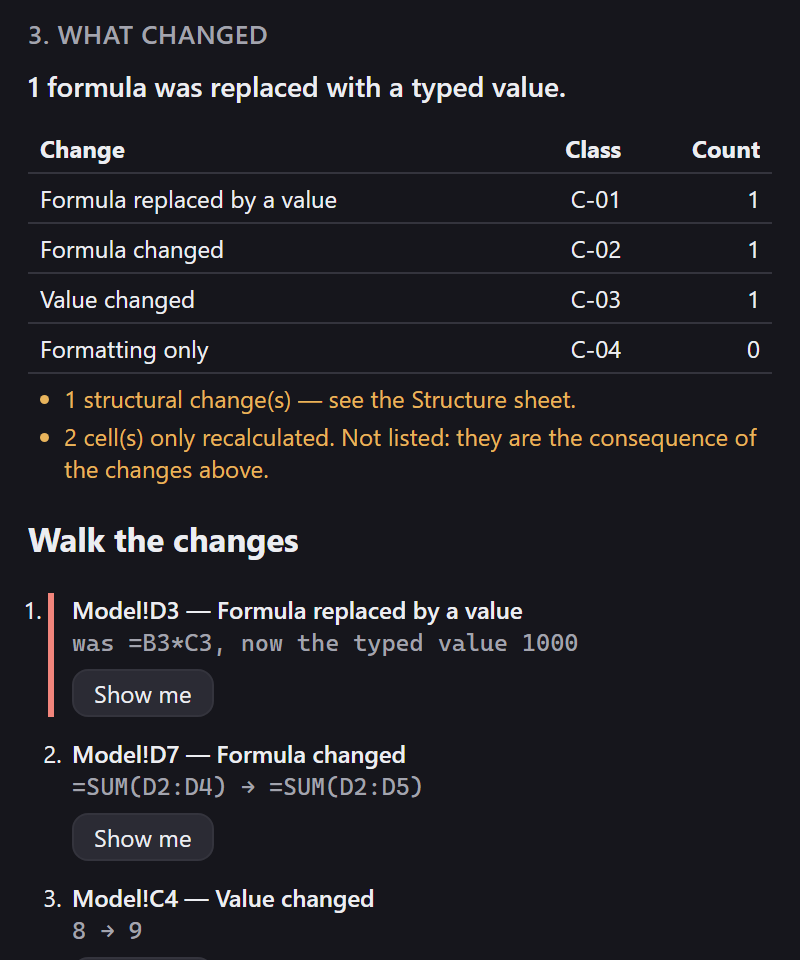
The two amber notes under the table are the things that were not listed and why: one structural change, on the Structure sheet, and two cells that only recalculated, which are the consequence of the edits above rather than edits of their own.
Step 4 — Walk the changes in place
The list is sorted by severity, not by position. C-01 is first and carries a red edge; everything else follows.
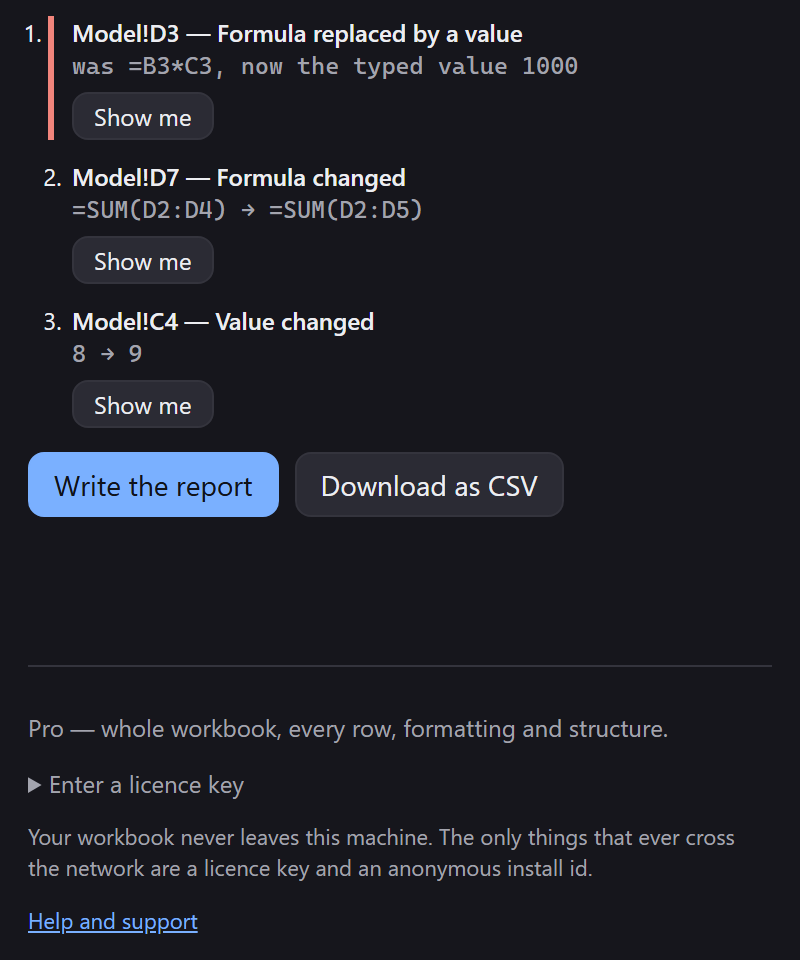
It selects and scrolls; it does not colour anything in. One of these two files is evidence and the other is your live work, and an add-in that marked up either has damaged the thing you were trying to inspect.
Step 5 — Write the report
Write the report produces four sheets, written fresh. Neither version is modified.
- Summary — the count per class, with the critical one stated as a sentence.
- Changes — one row per change: sheet, both cell addresses, before, after, and both formula forms. Sorted by severity.
- Structure — inserted and deleted rows, sheet-level changes, defined-name changes.
- Audit — both file names, both timestamps, sheet counts, the version, the run time and every option that was on. This is the answer to “how did you produce this” when you are not in the room.
Structural changes
Inserted and deleted rows and columns, sheets added, removed, renamed or reordered, and defined
names that were repointed. That last one is the sneakiest change Excel allows: move what
Uplift refers to and every formula using it means something else, without one
character of formula text changing anywhere.
What the tiers do
Free compares the active sheet, up to 1,000 rows, and reports the two formula classes — enough to prove the alignment works on your own model, not enough to review a quarter's changes with. Pro adds the whole workbook, every change class, structural detection, the report export and in-workbook navigation.
Known limits
-
Volatile formulas are compared on their text, not their result.
TODAY()andRAND()return something different every time the file opens; treating that as a change would fill every report with edits nobody made. - Dynamic arrays are read from their anchor cell. A spill's other cells hold values, not formulas, and are marked as such so they are never reported as a formula that became a number. A two-dimensional spill's interior is not always recognised, which errs towards reporting a real change rather than hiding one.
-
Localised function names are not translated. A file saved by an Excel that
writes
SUMMEand one that writesSUMwill compare as different. Separators and spacing are normalised; function names are not. - Conditional formatting, data validation and table ranges are not compared yet. Those are logic, not formatting, and they are on the list rather than folded into the formatting class.
- This is not a merge tool. It reports; it never writes changes from one version into the other. That is a different product with a different risk profile.
- Mac and iPad are untested. The manifest permits them and Microsoft lists them, but no verification run has happened on either. Please report anything that misbehaves.
If something looks wrong
Email support@appgarden.co.uk, and say which platform you are on and what the pane showed. If a comparison came out wrong, the two versions are the most useful thing you can send — but only send data you are content to share, and read the privacy notice first.