
How to find every external link in an Excel workbook
A step-by-step run through the add-in on a workbook with links Excel will not show you. The scan and the whole report are free and unlimited — every location, every sheet, and the dependency findings too. Only the map itself, the export and the break are paid, and each is marked Pro where it appears.
What the problem is
Excel knows a workbook has external links. Data › Edit Links will tell you which files it is linked to. What it will not tell you is where — and for most of the places a link can hide, there is nothing to find with Ctrl+F either.
A link can live in a defined name, a data validation list, a conditional formatting rule or a
hyperlink. None of those is a cell containing a formula, so none of them is searchable, and Edit
Links names the file without naming the place. The workbook then gets sent to someone else, or the
source file gets moved, and the first anyone knows is a column of #REF!.
This add-in reads every one of those surfaces, reports the exact location of every reference the workbook makes outside itself, and maps which sheets depend on which.
What it looks for
Every finding carries its rule code, so a report you read in six months still says which check produced which line.
XL-01 | A link in a cell formula. |
XL-02 | A link inside a defined name. Nothing built into Excel shows these. |
XL-03 | A defined name that is already #REF!. |
XL-04 | A link inside a conditional formatting rule. |
XL-05 | A validation list sourced from another file. |
XL-06 | A hyperlink pointing outside this workbook. |
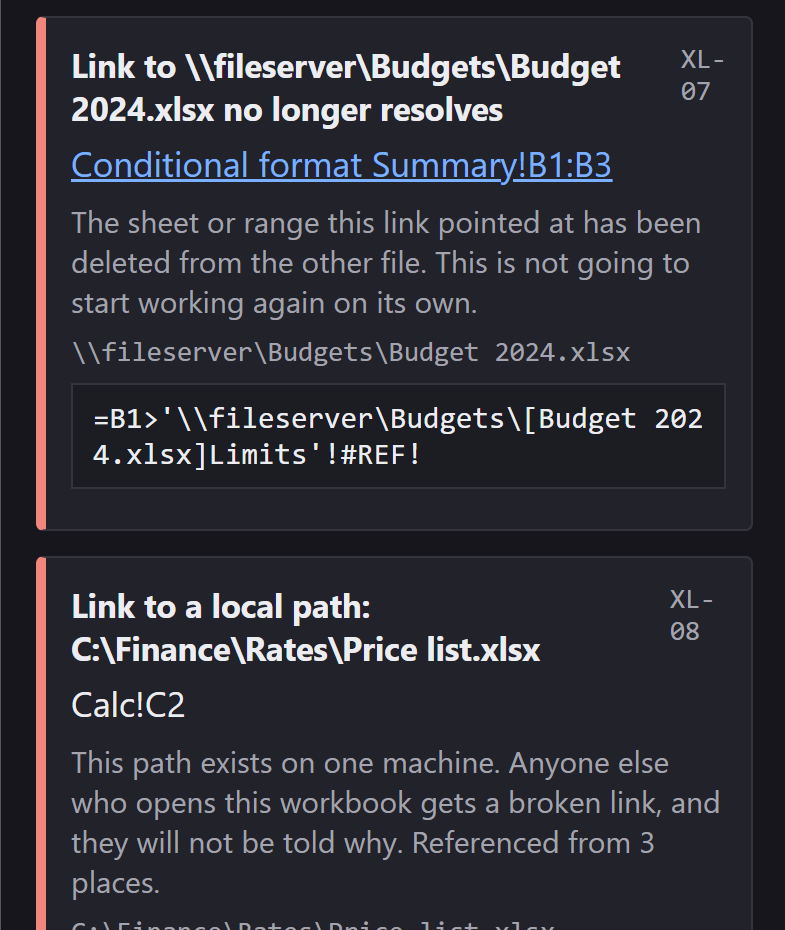
XL-07 | A reference that no longer resolves. |
XL-08 | A link to a local drive path. Works for one person on one machine. |
XL-09 | A link to a personal OneDrive. |
XL-10 | A linked formula currently showing an error. |
XL-11 | Links set never to refresh on their own. Excel on the web only. |
XL-12 | A file Excel lists as a source that no formula, name or rule references. It may still feed a chart, shape or pivot table, which this scan cannot read. Excel on the web only. |
XL-13 | What could not be inspected. Not a defect — the boundary of the answer. |
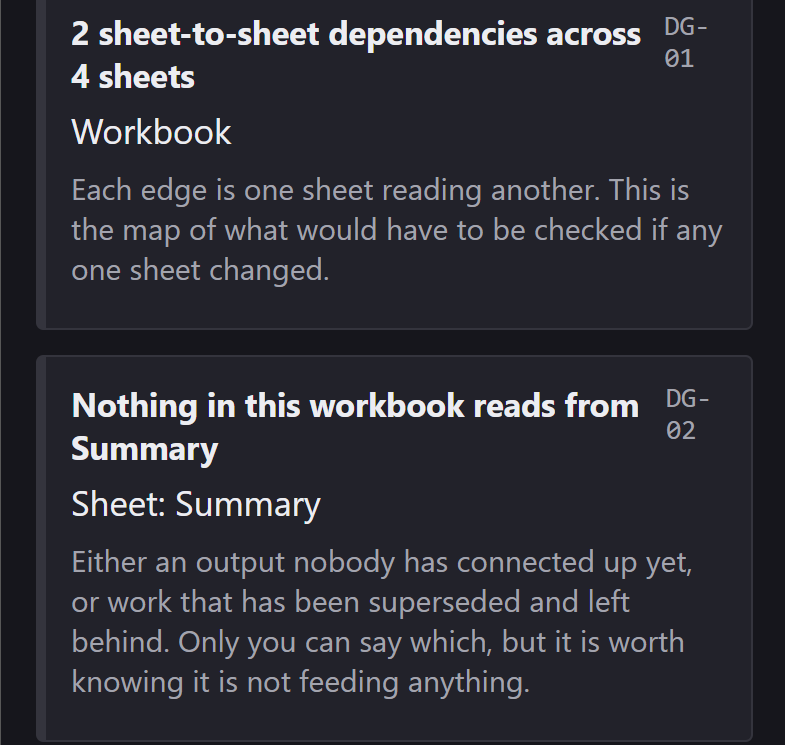
DG-01 | Sheet-to-sheet dependencies. |
DG-02 | A sheet with content that nothing else reads. |
DG-03 | Sheets that refer to each other in a loop. |
DG-04 | The most depended-on sheet in the workbook. |
DG-05 | What stops working if one linked file goes away. The count behind the break preview, and always a floor. |
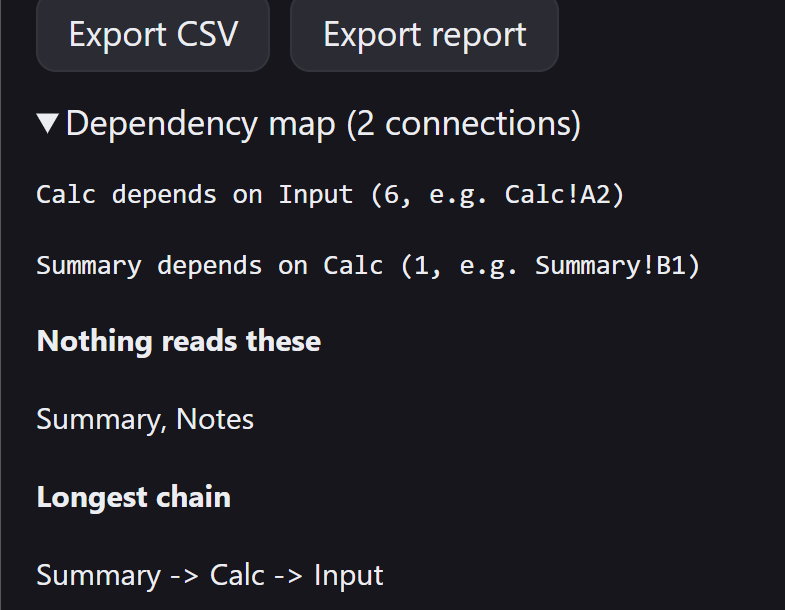
DG-06 | The longest chain of sheet-to-sheet dependencies. |
XL-01 is reported per cell, because a link in a cell is a place to go and look.
XL-08 and XL-09 are reported per target file, because “this file is
on somebody’s C: drive” is one fact about one file, and printing it four hundred times
would bury the eleven rows that matter.
Before you start
- Excel on Windows, Mac, or the web. The scan reads formula text, which does not vary by platform, so the report is the same everywhere — though only Windows has been through a verification run so far, and the last bullet under What it will not do says so plainly. Breaking a link is Excel on the web only, for the reason given in Step 6.
- The add-in installed. See the support page for that.
- A workbook that links to something. If you have one that Edit Links lists a file for and you cannot find the cell, that is the one to open.
- Nothing leaves your machine. No formula, no cell, no sheet name, no file path. The add-in talks to one server and only ever about a licence key and an anonymous install id. The privacy notice says so in full.
Step 1 — Open the pane
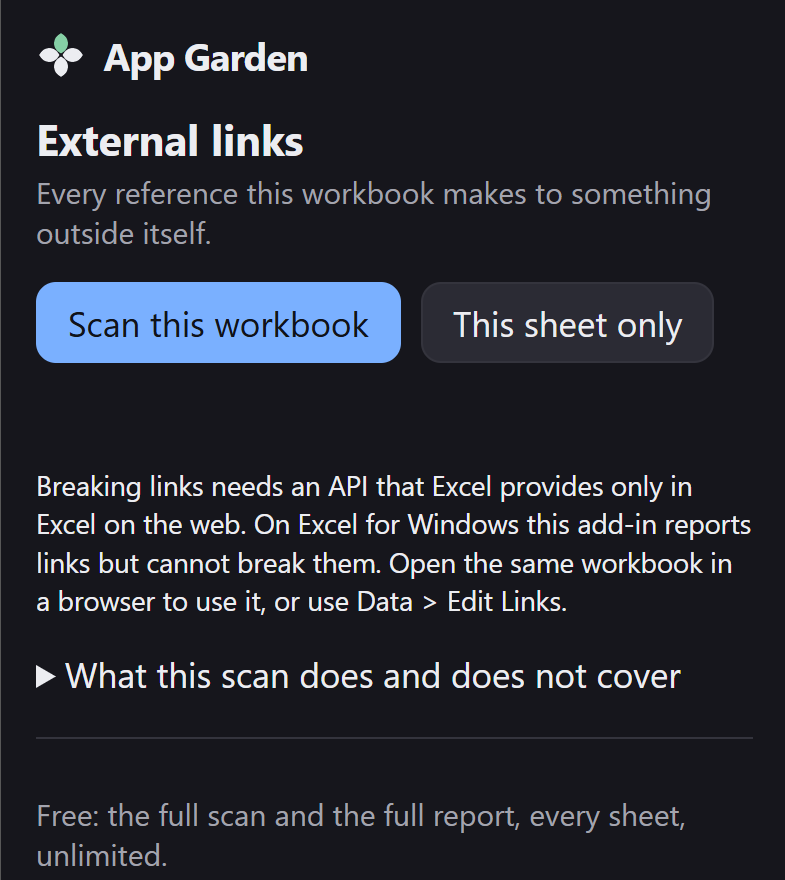
Open the workbook, then Home › External links › Find links. Two scan buttons, and nothing else until you have run one.
Step 2 — Scan the workbook
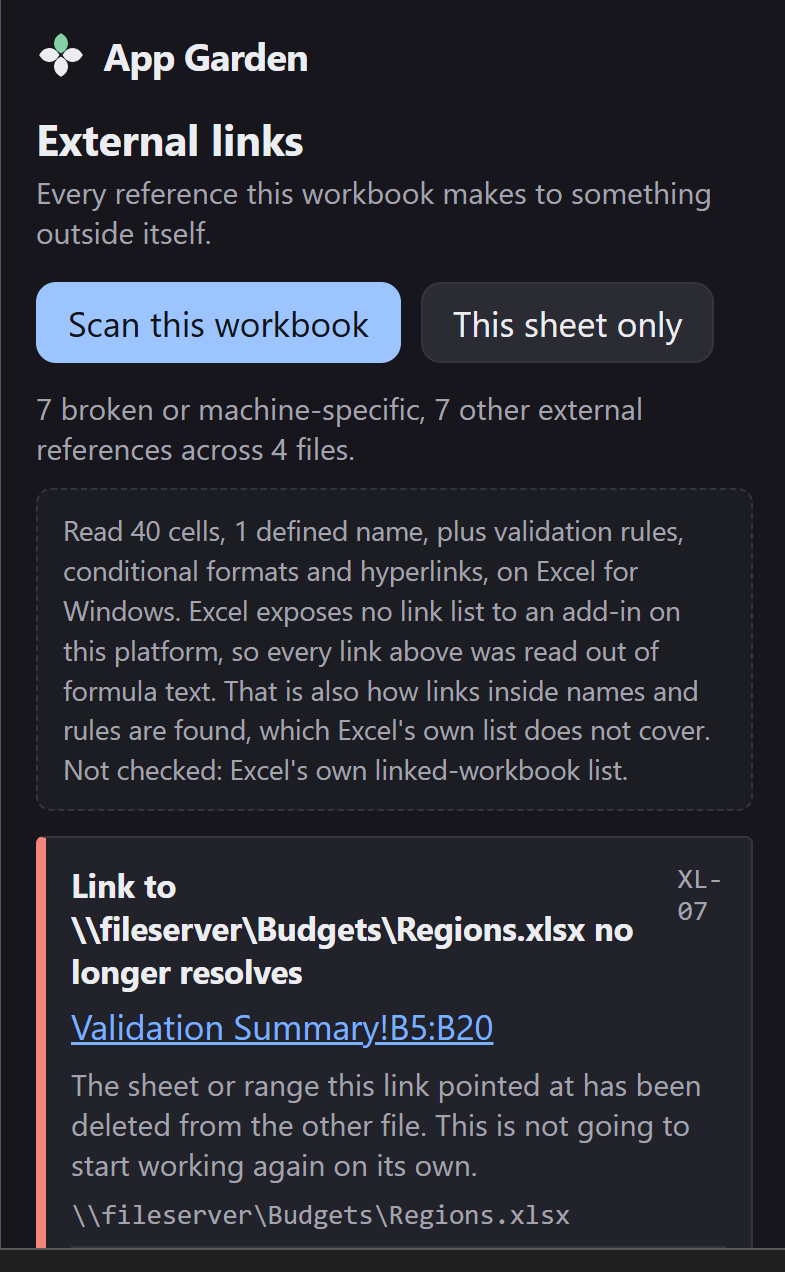
Press Scan this workbook. It reads the used range of every sheet in one pass, along with the defined names, validation lists, conditional formats and hyperlinks, and reports every reference that points outside the file.
This sheet only is there for a very large workbook where you already know roughly where to look. It is not a smaller free tier — the whole-workbook scan is free too.
A workbook with no external links produces one line saying so, not an empty list. A clean result is worth as much as a dirty one.
Step 3 — Read a finding
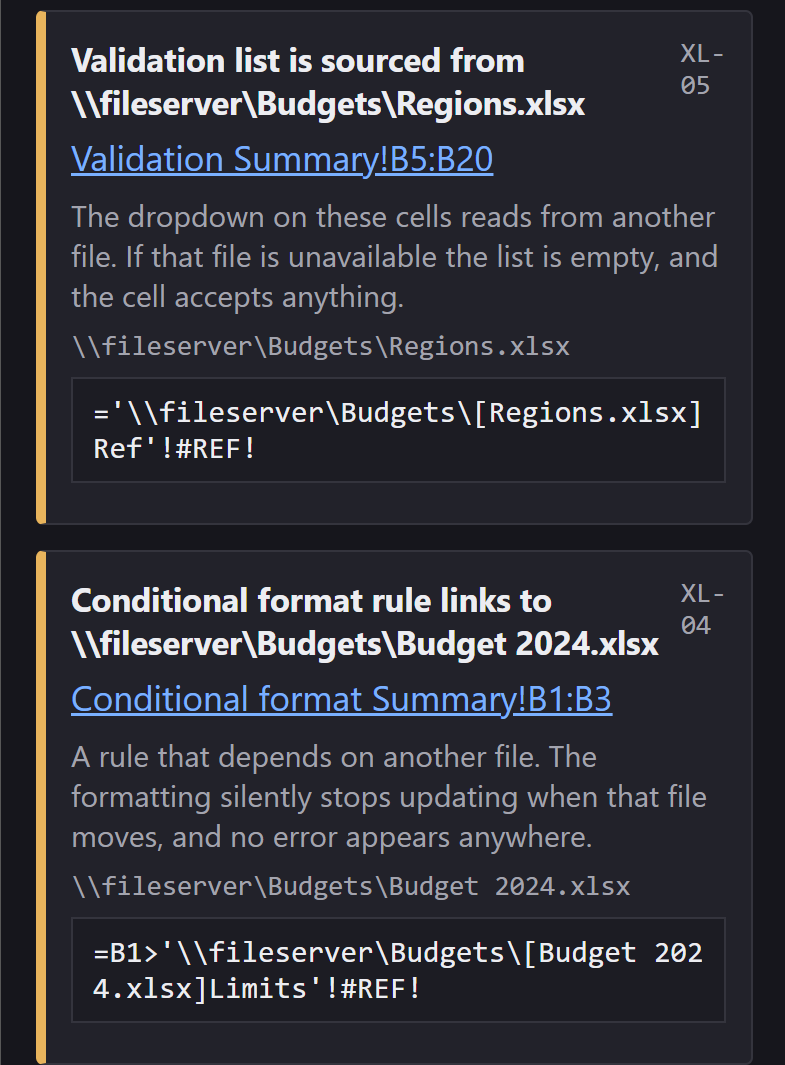
Findings come in three levels, and the order they appear in is the order to work in.
-
Already broken, or certain to break for someone else. A
#REF!reference, a#REF!defined name, a linked formula sitting in error, or a link to a path that only exists on one machine. - Worth knowing. Links that work today: where they live, and what file they point at.
- Notes. What was covered, what could not be checked, and the dependency map.
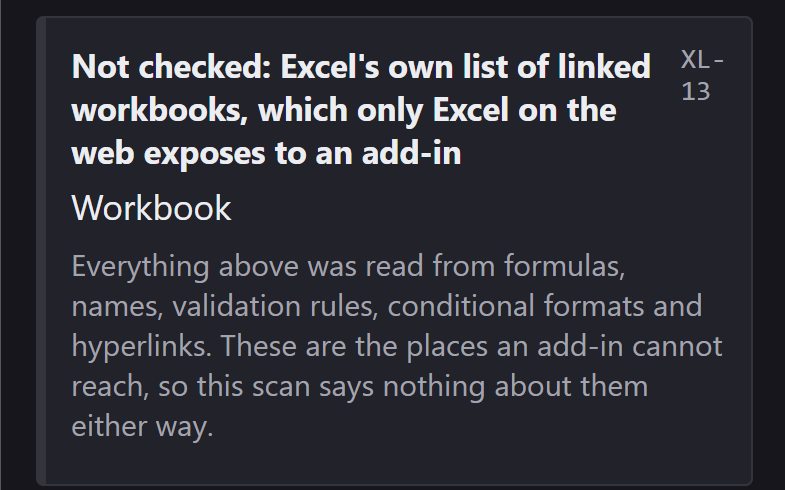
Click any location and the pane selects that cell in Excel. For a defined name there is no cell to select — which is the whole reason that case is hard, and why it is the first thing checked.
Step 4 — The one that catches people: a link in a defined name
This is the case the add-in exists for, and the one with no other way to find it. Press Ctrl+F3 to open the Name Manager and find the name the report gave you. Its Refers to box holds the path.
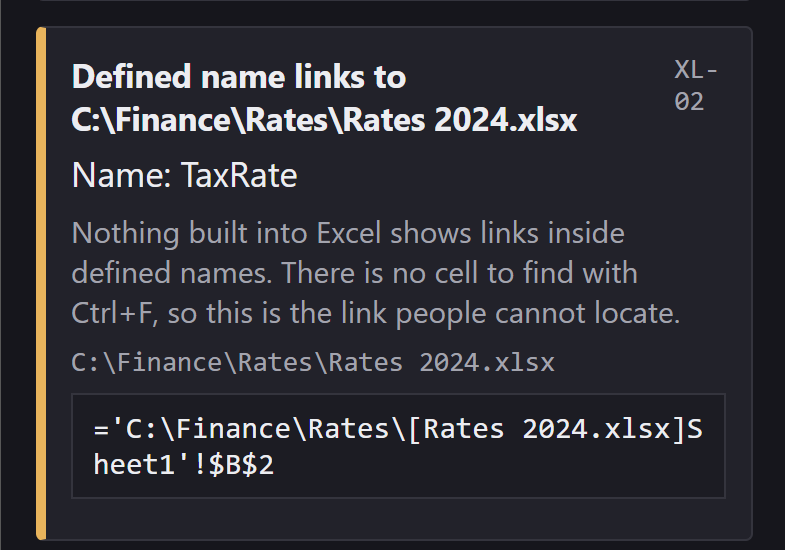
TaxRate, and no amount of
Ctrl+F will find it, because it is in no cell.
From there you can repoint the name at a local range, or delete it if nothing uses it any more. If Excel warns that formulas will break, that is worth knowing before you delete rather than after — the report tells you the name exists; the Name Manager tells you what happens next.
Step 5 — Read the dependency map Pro
The findings are free. How many connections there are, which sheets nothing reads from, where two sheets refer to each other in a loop, and how long the longest chain is — all of that is in the report on the free tier, as notes.
The map itself is the paid part: the connections listed one by one — which sheet reads which, how many times, and a cell to go and look at.
Step 6 — Break a link Pro
Excel on the web only. The API that enumerates and breaks workbook links exists there and has no desktop equivalent. On Windows and Mac the pane says so, rather than showing a button that does nothing.
- Break a link… lists the files Excel is holding a link to.
- Choosing one shows how many cells stop being formulas and keep the value they currently show. That count is a floor, and the pane says so: cells that depend on those cells are not counted. A surprise you were braced for is survivable; a number that turns out to be short at the moment you trusted it is not.
- Break it does it, through Excel’s own break — which also clears the link from the workbook’s link table, so it cannot come back as a phantom.
- Undo puts every formula back. It is free, and it always will be. A data-safety net behind a paywall is not something this add-in is willing to sell.
A file with no cells referencing it is the XL-12 case. Breaking it changes no cell
value, but a chart, shape or pivot table may still draw on that file and would stop updating, and
this scan cannot read those. Check them before you break it.
Step 7 — Export the report Pro
Export CSV for a spreadsheet, Export report for something to paste into an email or a file note. Both name the workbook, the host, the coverage and what could not be checked, so the report still stands on its own months later.
If your host refuses the download — Excel on the web sometimes does — the pane shows the report in a box to copy instead, and says so. It never silently does nothing.
Step 8 — Entering a licence key
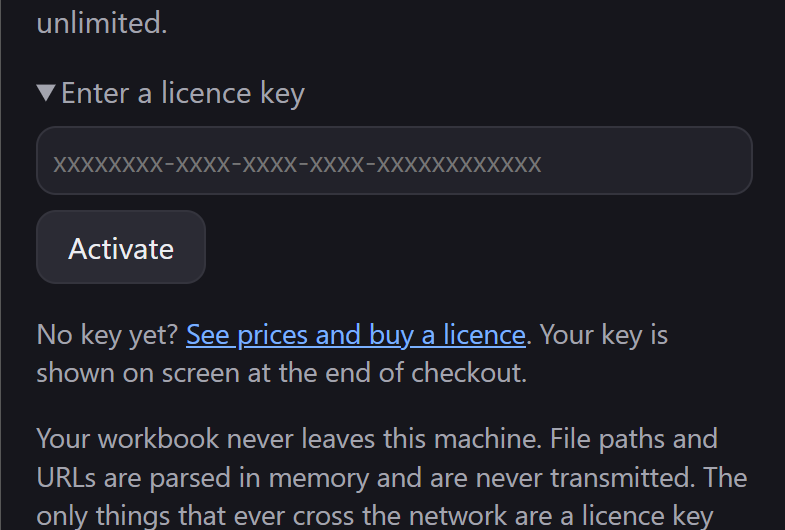
Open Enter a licence key at the foot of the pane, paste the key from the end of checkout and press Activate. It takes effect immediately — no restart. The key field is always there, whether or not the pane thinks you need it.
What it will not do
-
Charts, shapes, pivot caches and Power Query are not inspectable from a task pane.
Excel exposes no way to read them. Every report says so as an
XL-13line rather than quietly leaving them out — a scan that stops disclosing its own boundary has started pretending. - It cannot tell you when a linked file last changed. A task pane cannot read a file’s modified date. “Stale” here means exactly three things: links set to manual refresh, a linked formula sitting in error, and a reference that no longer resolves. Anything more would be a guess presented as a fact.
- A cached value from a deleted file looks exactly like one from a file that still exists. Excel keeps the last value it read. Where the difference cannot be established, the finding says the link is there, not that it is broken.
-
Two rules are Excel on the web only.
XL-11andXL-12need the workbook link table, which only the web has an API for. On desktop those two are reported as not checked, not as clean. - Breaking a link is not available on desktop, for the same reason. Edit Links can do it by hand.
- Mac, iPad and Excel on the web are untested. On Excel for Windows every rule in the table above has been run against a workbook built to trigger it, and the results are kept in the repository rather than remembered. The manifest permits the other three platforms and Microsoft lists them, but no verification run has happened on any of them yet — which is worth knowing before you rely on a report taken there. Please report anything odd.
False positives
There should not be any, and the ones people expect are specifically tested against: structured
table references (Table1[Amount] — same bracket, not a link), a workbook reference
inside a string (INDIRECT("[Book1]Sheet1!A1")), and ordinary text that happens to
contain a bracket. A hyperlink that jumps to another sheet in the same workbook is in the same
category — it is a hyperlink, but it points nowhere outside the file, so it is not reported.
A wrongly reported link is more damaging than a missed one, so if you find one anyway it is the bug most wanted here.
If something looks wrong
Email support@appgarden.co.uk, and say which platform you are on and what the pane showed. A workbook that produced a wrong finding — or hid a real link — is the most useful thing you can send, and the one most wanted. Only send one you are content to share, and read the privacy notice first.