
How to take over someone else's spreadsheet
Somebody has left, or a client has sent you their model, and now it is yours. This is a method for getting to the point where you can change it without breaking it — in about two hours for a model of ordinary size, and without reading every cell.
It is written to be useful whether or not you install anything. Where this add-in shortens a step, it says so and says by how much; the rest is method you can follow with nothing but Excel.
1. Take a copy, and never work in the original
Obvious, routinely skipped. Save a copy with today's date in the filename before you click anything. Half of what follows involves poking at formulas to see what they do, and you want the freedom to poke.
If the file is on a shared drive, copy it somewhere it cannot be open twice at once. A model two people have open is a model with two versions of the truth.
2. Find out what it is FOR before reading any of it
Do not start in cell A1. Start with the question the model exists to answer — what number does somebody act on, and who? Ask the person handing it over, and if there is nobody to ask, look at what gets printed, emailed or pasted into a report.
Everything after this is easier once you know which number matters. A model usually has one, occasionally three, and never forty.
3. Map the sheets before the cells
Right-click the sheet-tab navigation arrows to see every sheet at once, including ones you were not shown. Then sort them into three piles:
- Inputs — typed-in numbers, pasted exports, assumptions.
- Calculation — sheets that mostly compute from other sheets.
- Output — what somebody actually looks at.
The quick test: click a few cells. A sheet where the formula bar is nearly always empty is an input; a sheet where it is nearly always full is a calculation. Check for hidden sheets — right click any tab, then Unhide — because the interesting one is often hidden.
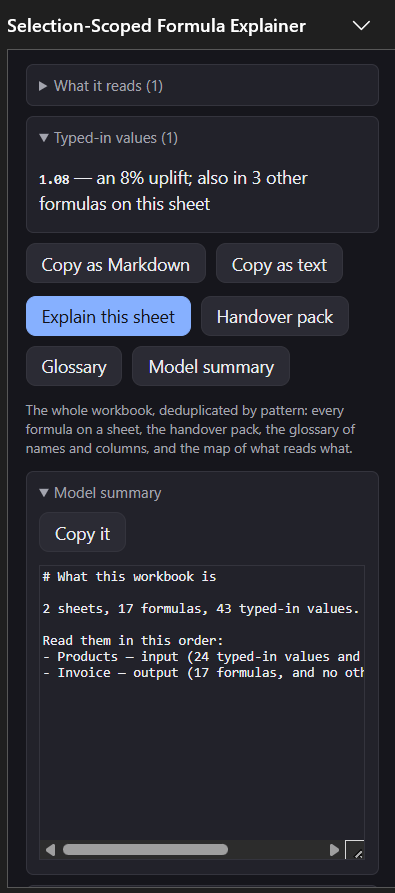
With the add-in: the Model summary does exactly this in one click, and adds which sheets read which. Paid.
4. Find the output, and read one formula properly
Go to the number from step 2 and understand that single cell completely before anything else. Not roughly — completely. Which cells feed it, what they mean, and what it does with them.
Doing this by hand means reading the formula, translating each reference back to a column header by eye, and holding the lot in your head. Excel's own Formulas ▸ Evaluate Formula will step through the arithmetic, but it shows raw syntax at every step and says nothing about what any of it means.
With the add-in: this is the free part, and it is the whole reason it exists. Click the cell and read a sentence in the workbook's own words — real column headers, real defined names, the live values flowing through it. Then click the next cell.
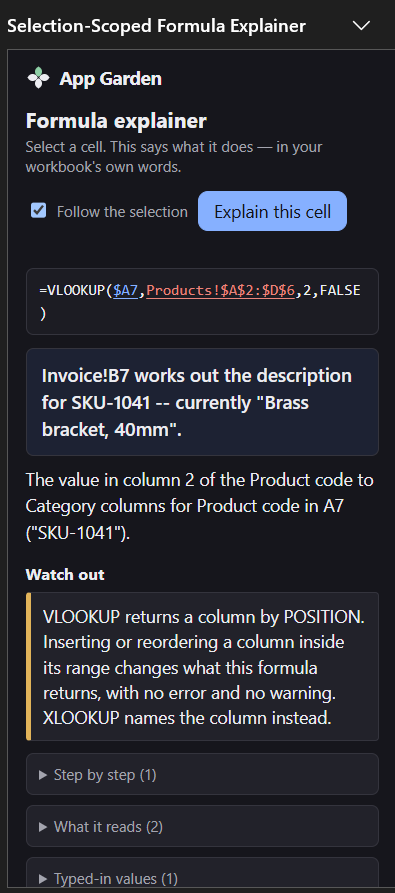
Products!$A$2:$D$6 is named as the Product code to Category columns, and 2 as the column it counts to. The warning underneath is the one that matters: insert a column inside that range and the formula returns something else, with no error.
5. Follow one number all the way back
Take the output and walk it backwards to the typed-in numbers it ultimately comes from. This is the single most useful two hours you will spend on an inherited model, because it crosses every sheet boundary and every assumption on the way.
By hand: Formulas ▸ Trace Precedents, or Ctrl+[ to jump to a formula's inputs (Ctrl+] jumps to what depends on the current cell). Be warned that Trace Precedents draws a single dashed arrow to a small worksheet icon for anything on another sheet, which is where the trail usually goes.
With the add-in: the explanation names each input in the workbook's own words as
you walk, so you are following Unit price in C3 rather than C3. It can also
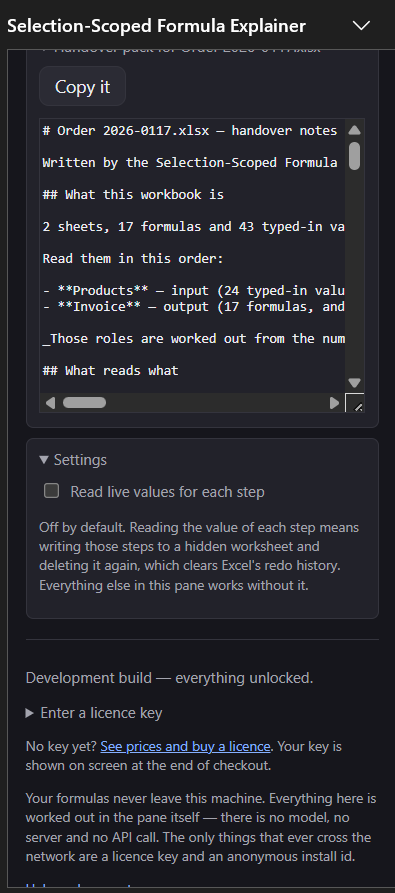
show what each sub-expression comes to — but that is off until you switch it on, because working
the values out means writing to a hidden sheet, and that clears Excel's redo history. Free.
6. Find what is typed into formulas
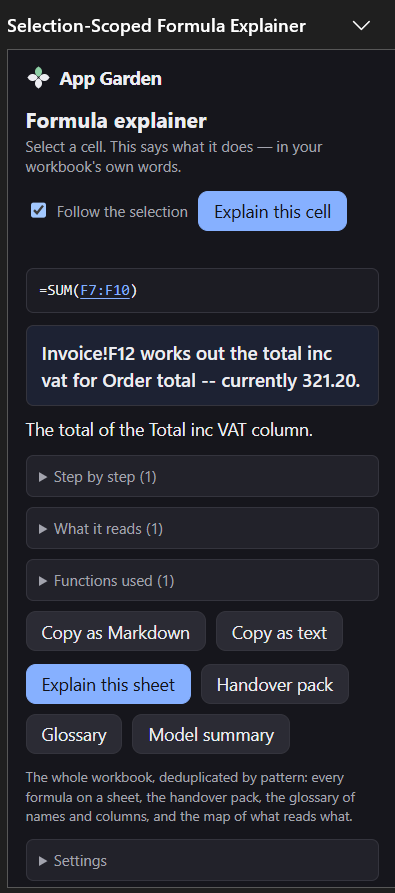
A number typed inside a formula — a tax rate, a margin, a conversion factor — is invisible. Nobody can see it, nobody knows it is there, and when it changes somebody has to find every formula that repeats it.
By hand: Ctrl+F, tick Look in: Formulas, and search for the rate you suspect. That finds the ones you already suspect, which is the problem.
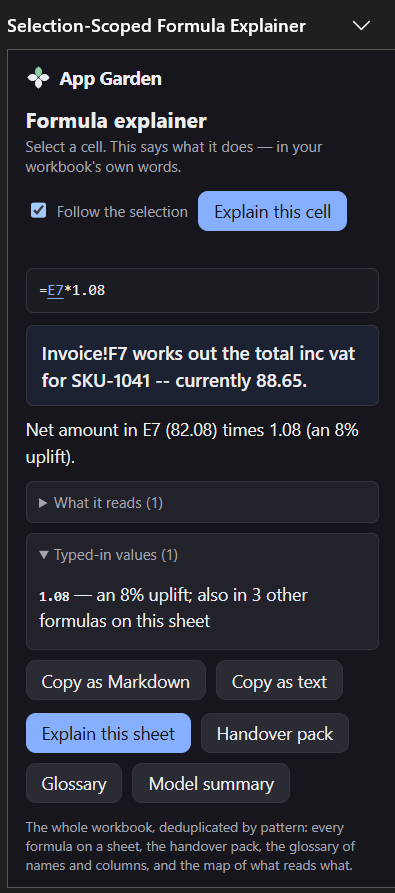
With the add-in: every explanation lists the literals in that formula and says how many other formulas on the sheet contain the same one. "An 8% uplift, also in 41 other formulas" is the sentence that changes what you do next — the demo below is a four-row sheet, so it says three. Free.
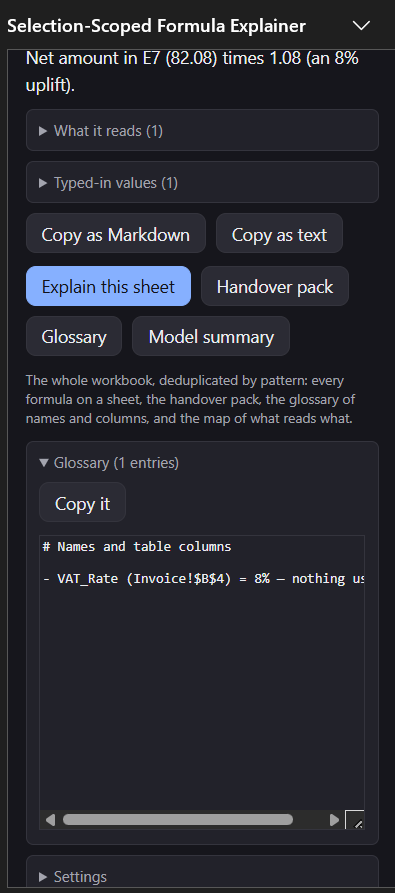
VAT_Rate name holding 8%, three rows above the formulas that ignore it.
7. Find the cells that do not match their neighbours
In a column of four hundred filled formulas, the one somebody typed over by hand is the bug you will otherwise find in six months, in front of a client.
By hand: select the column, press F5 ▸ Special ▸ Formulas to select just the calculated cells, and look for gaps. It works, and it is tedious, and it finds a typed-in constant but not a formula that is subtly different from its neighbours.
With the add-in: selecting any cell in a filled column tells you whether it matches the pattern the rest of the column uses, and names the ones that do not. Free.
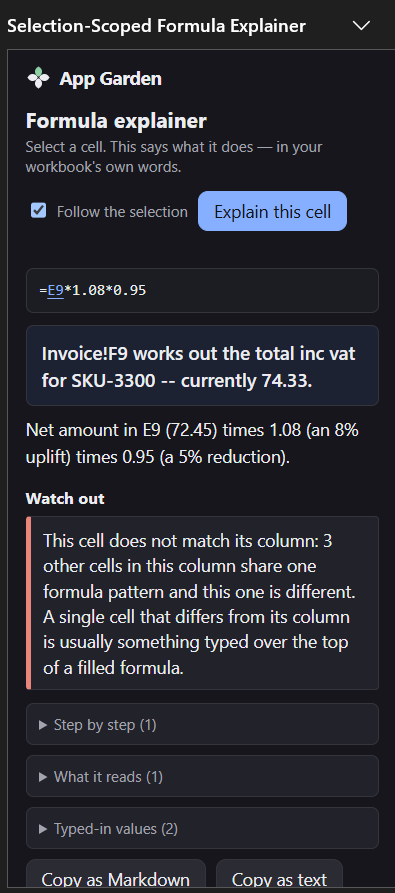
*0.95 is a discount somebody typed in and recorded nowhere. It reads as an ordinary number in an ordinary column.
8. Find what it reads from outside itself
Links to other workbooks are the commonest way an inherited model quietly goes wrong: the source file moves, or lives on somebody's personal drive, and Excel keeps showing the last value it saw. Nothing looks broken.
By hand: Data ▸ Edit Links tells you links exist. It has never told anybody where they are.
With the add-in: any formula reading another workbook says so, and says that its value cannot be checked from here. For the whole-workbook version — including links hiding in defined names, validation lists and conditional formats — that is a different add-in, the External Link and Dependency Mapper.
9. Check what happens at the edges
Put a zero where a number normally goes. Put text where a number goes. Delete a row. Then look at the output.
You are looking for two things: errors that appear, and errors that do not. A model
wrapped in IFERROR shows you a tidy zero when its lookup stops matching, and a
tidy zero is indistinguishable from a real answer. Undo afterwards — this is why step 1 exists.
With the add-in: the "Watch out" panel names the fragile parts before you go looking — errors being swallowed, approximate-match lookups, volatile functions, whole-column references, and formulas that break when a column is inserted. Free.
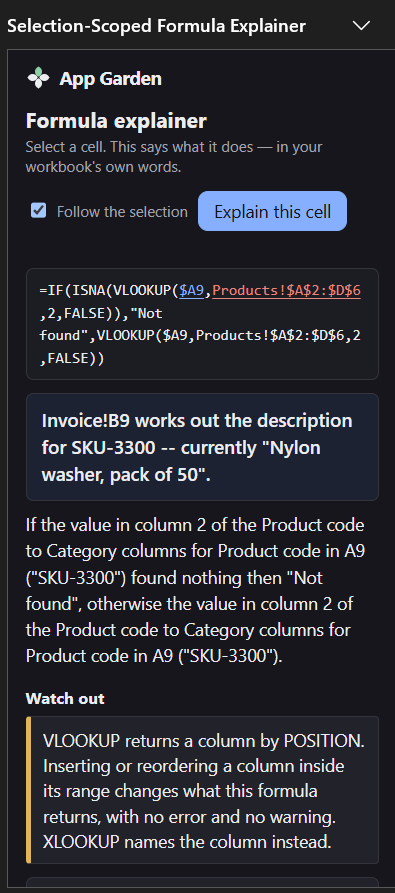
IFERROR idiom, which writes the lookup out twice and is what an inherited workbook is usually full of. Read as one sentence it is obvious what it hides: a failed match becomes tidy text, and tidy text sums to zero.
10. Write down what you found, before you forget it
You will understand this model better today than you ever will again. In three weeks you will have forgotten which sheet feeds which, and the next person will start from nothing.
Write, at minimum:
- What the model is for, and which number is the answer.
- Which sheets are inputs, which calculate, and which are output.
- Every rate typed inside a formula, and where it lives.
- Everything it reads from outside itself.
- What you know is fragile.
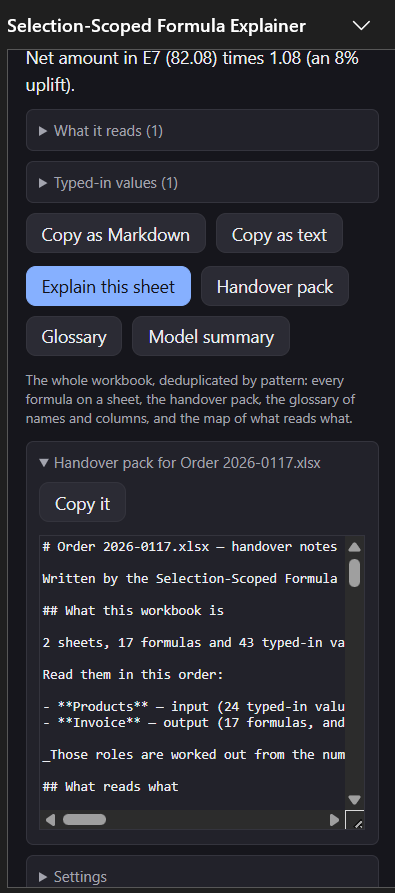
With the add-in: the handover pack is that document, generated — every formula pattern on every sheet, deduplicated, with its inputs, the hardcoded values, the fragility list and the glossary of names. Paid, and it is the thing the paid tier exists for.
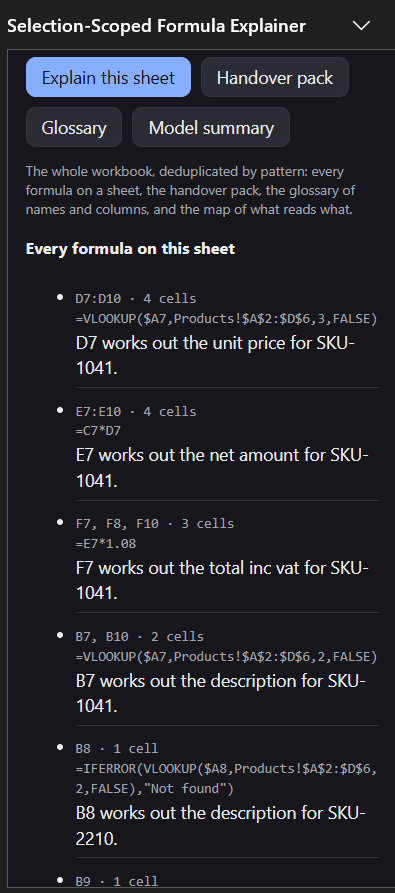
F7, F8, F10 grouped and F9 — the cell somebody typed over — standing on its own.
The shortest version
- Copy the file.
- Ask what it is for.
- Sort the sheets into inputs, calculation and output.
- Understand the one output cell completely.
- Walk it back to the typed-in numbers.
- Find the rates hidden inside formulas.
- Find the cells that break their column's pattern.
- Find the links to other files.
- Break it on purpose, in your copy.
- Write it down.
Common questions
What does this formula mean?
Whatever it is, the useful answer names the columns rather than the cells. "Looks up the SKU in the Price list tab and multiplies by quantity" is an answer; "INDEX returns a value at a given position" is a definition of INDEX, which you can already read in the tooltip.
Can I just ask Copilot?
If you have a Copilot seat, yes, and it will often do a decent job. Three things to know: it is
conversational, so the same question gets a different answer on different days; it does not
reliably resolve a reference to its column header; and it cannot be pointed at forty formulas
and asked for a document. Microsoft is also retiring the in-cell COPILOT() function
on 14 September 2026, so explanation lives in a side pane either way.
Is it safe to paste a formula into a website to have it explained?
That depends entirely on whose model it is. A formula carries sheet names, column names and often client names. If the workbook is a client's, pasting parts of it into a third-party service is a decision worth making deliberately rather than by habit. This add-in was built so the question does not arise: nothing leaves the machine, because there is nothing to send — the explanation is worked out in the pane itself.
How long should this take?
A single-purpose model of a few sheets: an afternoon. A twenty-sheet model with links out: two or three days before you would trust yourself to change it. If somebody tells you it will take an hour, they built it.