
How to find hardcoded values in a workbook
A step-by-step run through the add-in, from the empty pane to the fix and back again. Ten minutes, and you can do all of it on the free tier except the two steps that say otherwise.
What it looks for
Two things, and only two. Both are ordinary, both are invisible in Excel, and both quietly stop a workbook telling you the truth.
- A value pasted over a formula. A column of formulas with a typed number sitting in it. The sheet still adds up, so nothing looks wrong — and that cell has not recalculated since the day it was pasted.
-
A constant inside a formula.
=E8*0.2rather than=E8*$B$1. The answer is right until the rate changes, and then it is wrong everywhere the number was repeated.
Excel's own inconsistent-formula warning catches neither reliably. It compares a cell against its neighbours, so a number at the top or the bottom of a run — which is where they usually are — has no neighbour to disagree with.
Before you start
- Excel on Windows or the web. The pane is the same on both. It should work on Mac too, but that has not been tested yet.
- The add-in installed in Excel. It is on its way to Microsoft Marketplace; the support page says where that has got to.
- A workbook worth checking. If you want to follow along exactly, any sheet with a totals column will do — the screenshots below use a small regional sales summary.
- Nothing leaves your machine. The scan runs inside Excel. The only thing that ever crosses the network is a licence key. The privacy notice says so in full.
Step 1 — Open the pane
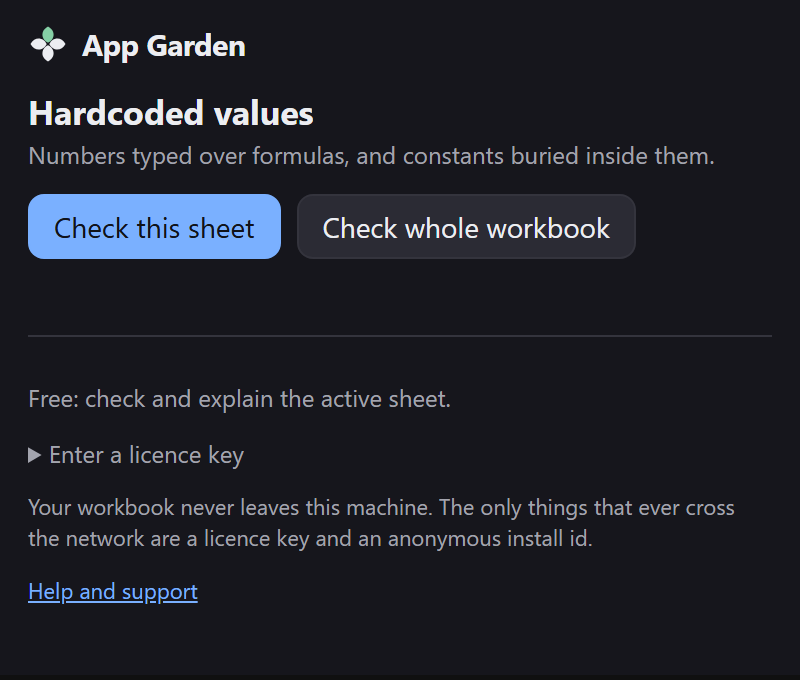
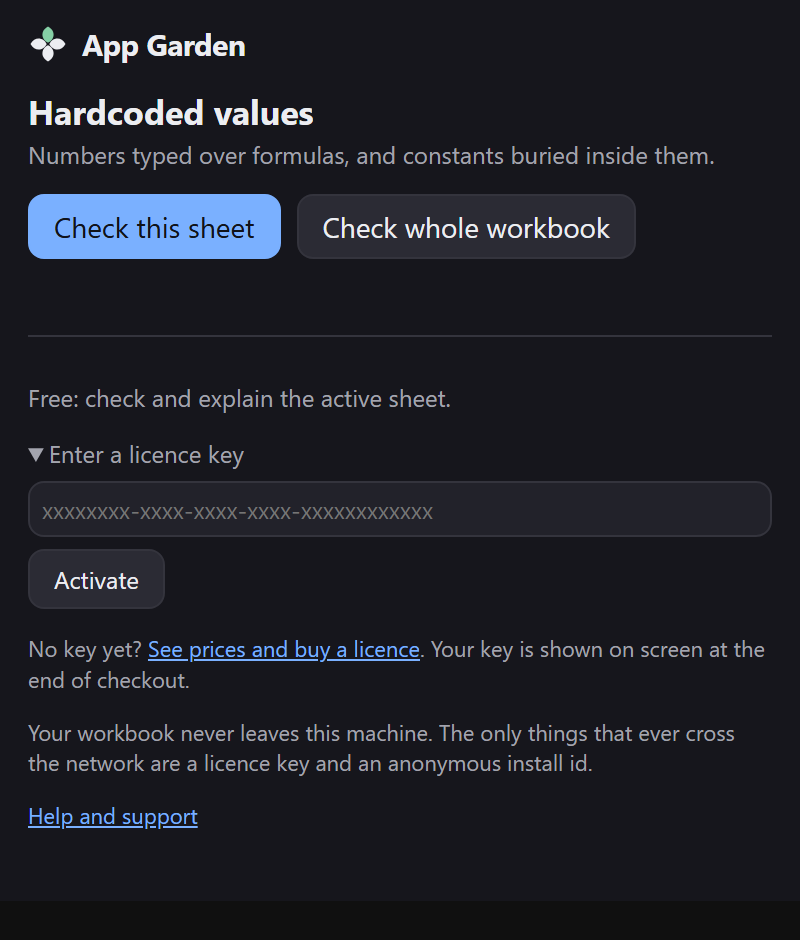
Open the workbook, then Home › Hardcoded values › Check sheet. The pane opens down the right-hand side with two buttons and nothing else. It has not read anything yet.
Step 2 — Check the sheet
Select the sheet you care about and press Check this sheet. It reads the used range once and lists what it found, worst first.
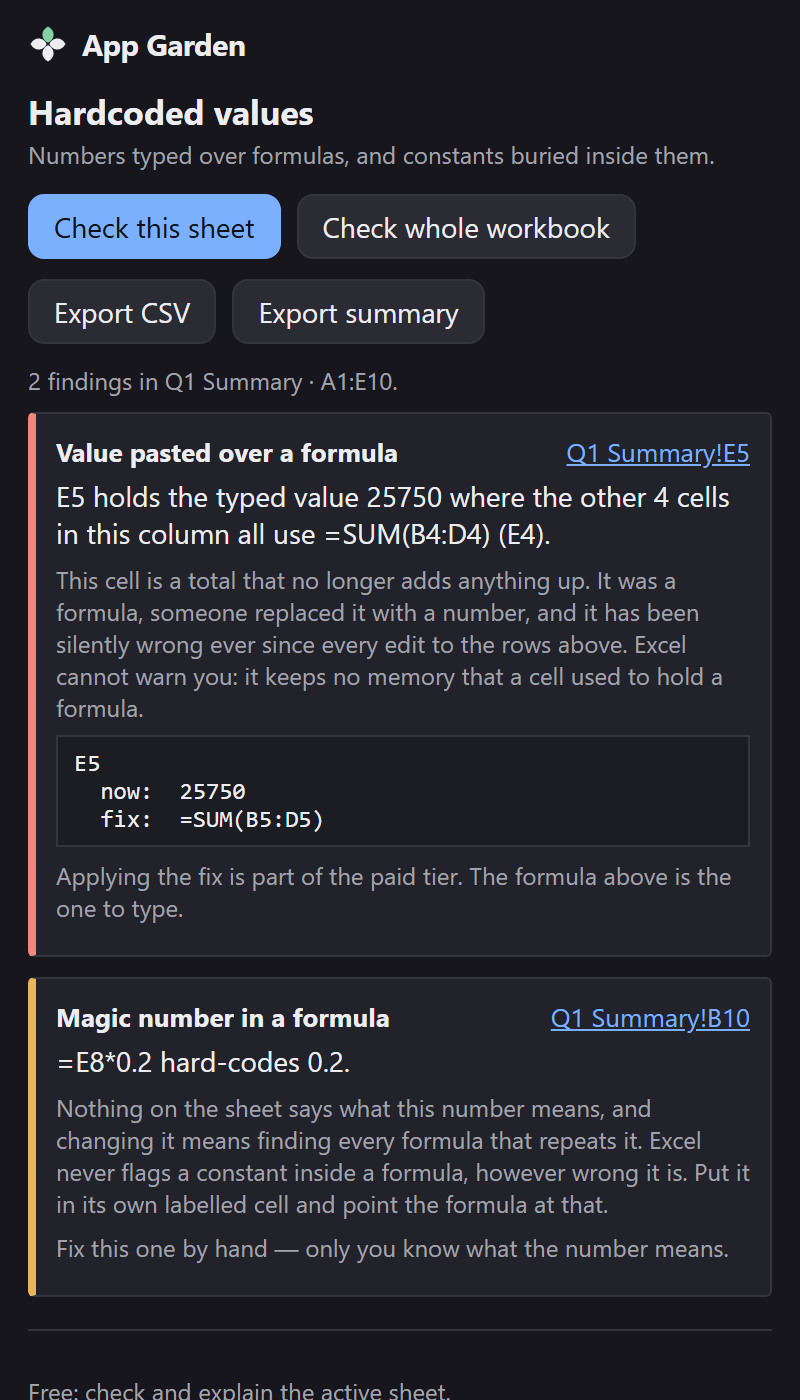
If it finds nothing it says so plainly. There is no score and no grade — two checks, and what they found.
Step 3 — Read a finding
Each finding is one card, and each card says four things:
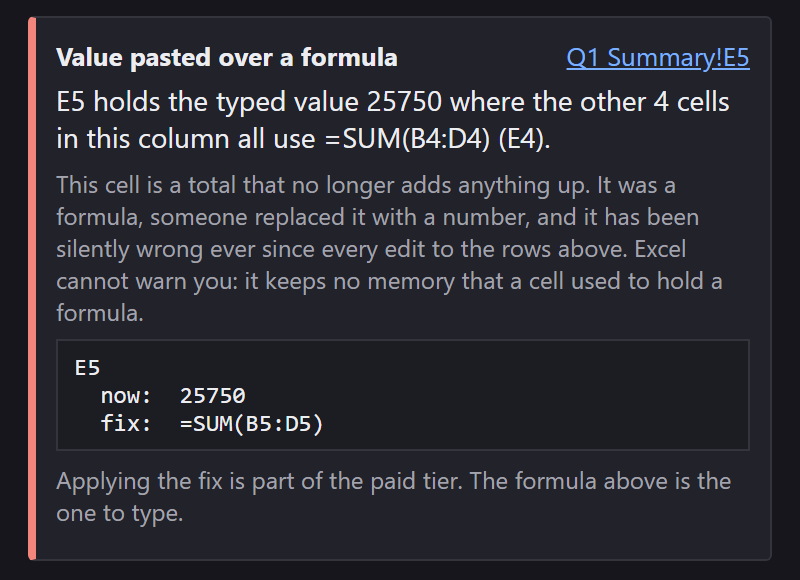
- What it is. “Value pasted over a formula”, and the cell.
- What is wrong, in one sentence, naming the pattern the rest of the column uses.
- Why it matters. The paragraph in grey. Worth reading once per kind of finding.
- The comparison. What the cell holds now, and what the formula would be. That block is built from the same instruction the Fix button executes, so it cannot promise one thing and do another.
The colour down the left edge is severity. Red is a value pasted over a formula — a number that has stopped adding up. Amber is a constant inside a formula, which may be perfectly deliberate.
Step 4 — Fix it Pro
On the paid tier each fixable finding carries a button naming exactly what it will do. On the free tier the same card shows the formula and tells you to type it in yourself — the explanation is never withheld.
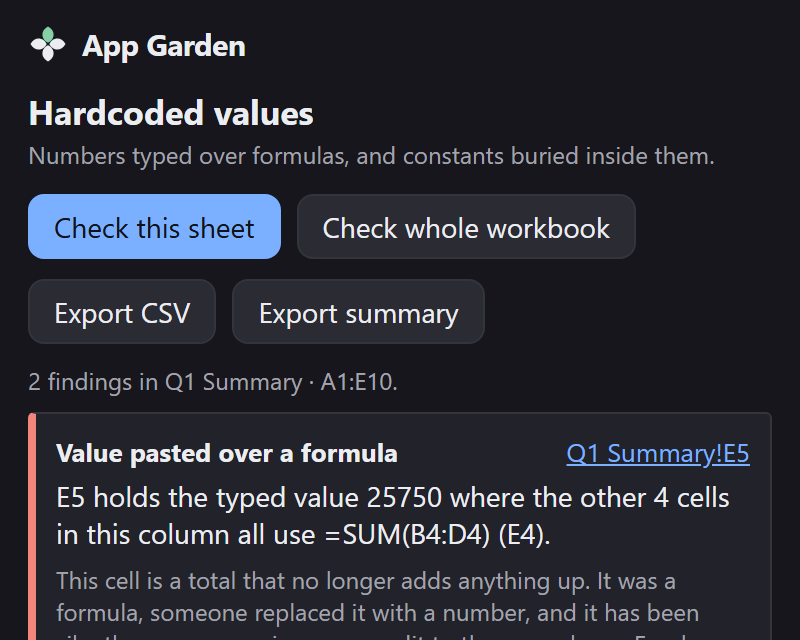
Press it, and the pane writes the formula, re-reads the sheet, and shows you what is left.
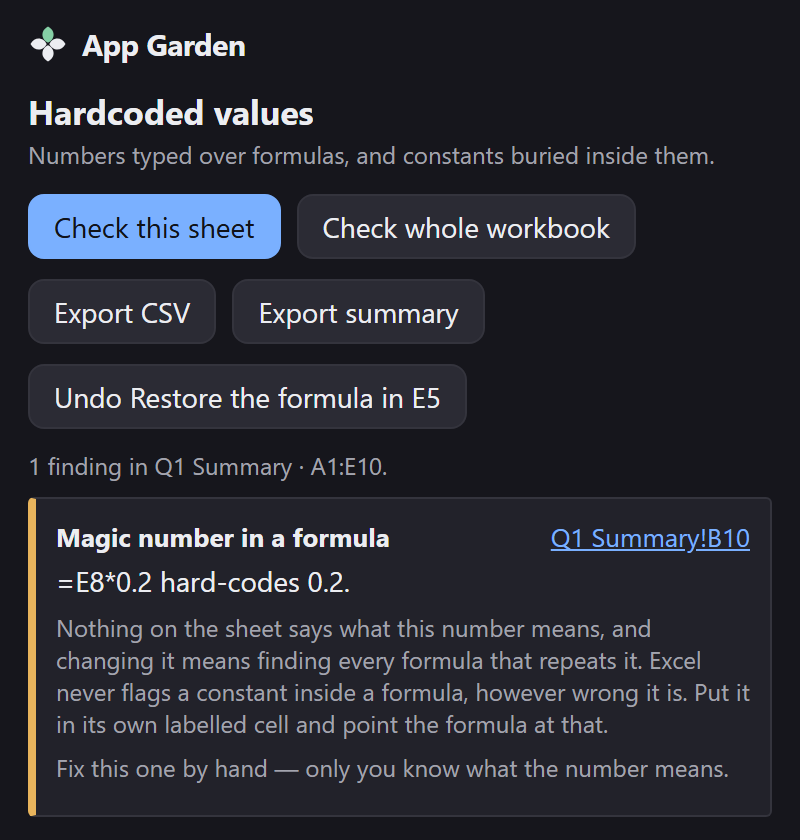
0.2 means.
Step 5 — Undo, if you want it back
Undo is free on every tier, always. It appears the moment there is something to go back to, and it survives the pane being closed and reopened.
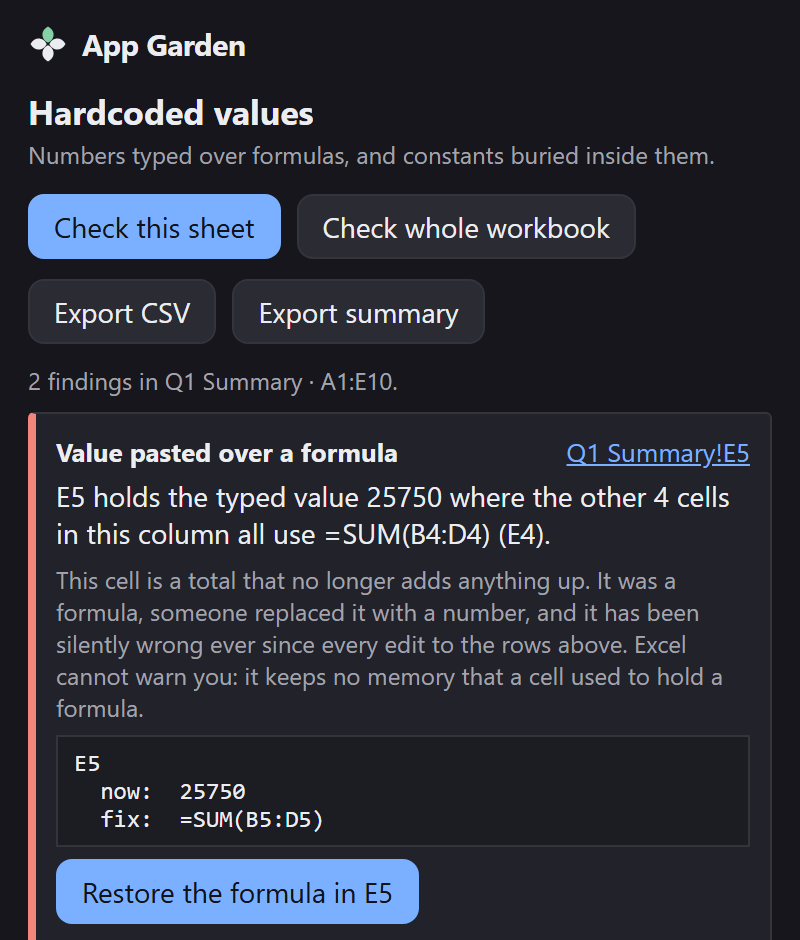
Use this button rather than Ctrl+Z. What Excel's own undo does after an add-in writes to a sheet is not defined by Office, and it varies by platform. This button is the reliable route.
Step 6 — The whole workbook Pro
Check whole workbook does every visible sheet in one pass and lists the findings together, each labelled with the sheet it came from. Hidden sheets are skipped: a finding on a tab you cannot see is a finding you cannot act on.
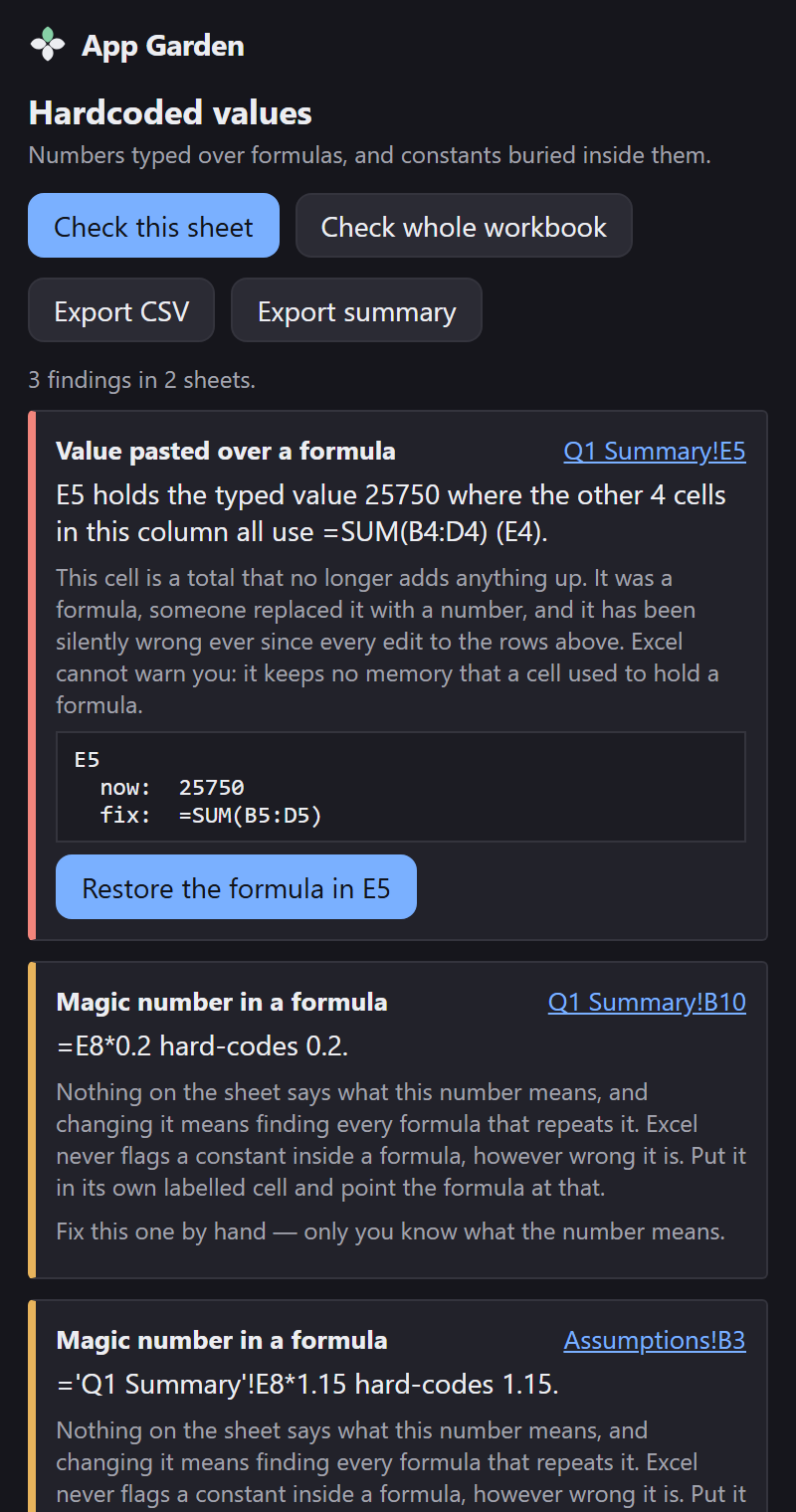
On the free tier the button is still there, and says why it did nothing:
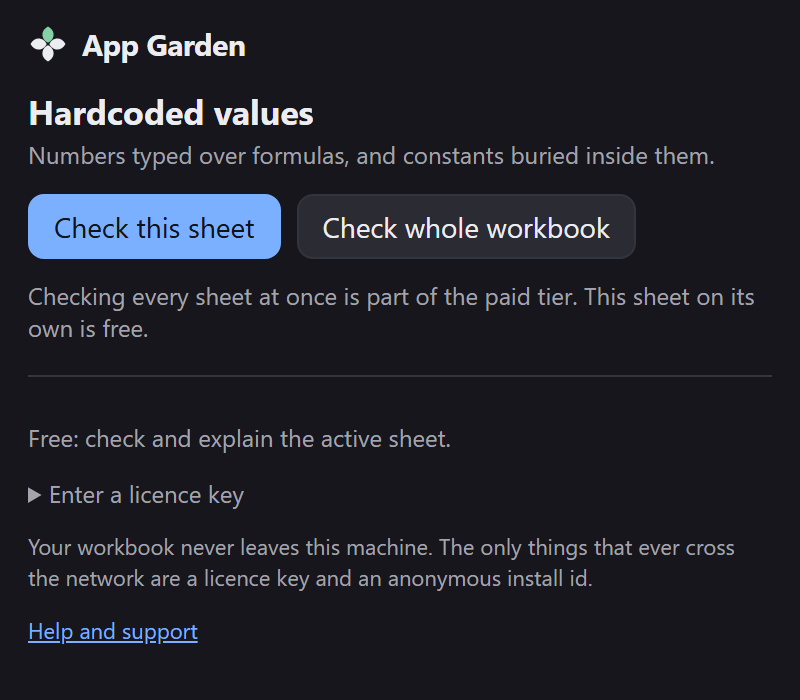
Step 7 — Entering a licence key
Open Enter a licence key at the bottom of the pane, paste the key from the end of checkout, and press Activate. It takes effect immediately — no restart.
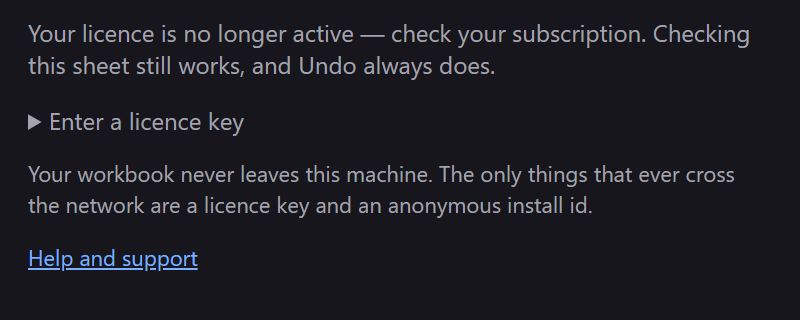
If the pane ever says your licence is no longer active, it is almost always a card that expired. Checking a sheet keeps working, and so does Undo.
Exporting what it found Pro
Export CSV gives you a row per finding for a spreadsheet or a ticket. Export summary gives you Markdown to paste into a message. Both export the scan you are looking at, not a fresh one, so the file always agrees with the screen.
Where a host will not let the pane download a file — this happens in some locked-down Excel on the web configurations — a Copy the report box appears with the same text in it.
When it will not help
- A lone formula. A run needs at least three matching formulas before a gap in it means anything. Two cells are a coincidence.
- A column with two different formulas in it. Deliberate variation, and the add-in stays quiet rather than guessing which one you meant.
- A number that is simply wrong. This finds numbers in the wrong place, not wrong values. Nothing can tell you 12,400 should have been 14,200.
- Hidden sheets, in a whole-workbook check.
-
A count, position or mode. The
2inROUND(x,2)or the3in aVLOOKUPis not a rate anyone moves into a labelled cell, so it is not reported. A typed year inDATEis. - A sheet of more than 4,900,000 used cells. Excel will not hand over that much at once. The pane names the sheet it skipped and checks the rest.
If something looks wrong
Email support@appgarden.co.uk, and say which platform you are on and what the pane showed. If a finding looks wrong to you, the workbook itself is the most useful thing you can send — but only send one you are content to share, and read the privacy notice first.