How to check the units in an Excel calculation
A step-by-step run through the add-in on a load schedule with two unit errors in it. Checking the active sheet is free and unlimited — nothing in this guide up to the last two steps costs anything.
What the problem is
Excel has no concept of a unit. =B4+C4 where B4 is 250 mm and C4 is 0.25 m
returns 250.25, and nothing anywhere objects. Neither does mixing kN with N, or summing a moment
in N·mm with one in kN·m. The arithmetic is correct; the answer is meaningless, and it looks
exactly like an answer.
This add-in reads the units you have already written — in column headers, row labels, units rows, number formats and cell notes — follows them through your formulas, and reports the places where two of them contradict each other.
Before you start
- Excel on Windows, Mac, or the web. The pane is the same on all three.
- The add-in installed. See the support page for that.
-
A sheet with units written somewhere near the numbers. The screenshots below use a load schedule
laid out the ordinary way — a labelled quantity per row,
Dead load, kN, and the number beside it. - Nothing leaves your machine. No formula, no cell, no sheet name. The add-in talks to one server and only ever about a licence key and an anonymous install id. The privacy notice says so in full.
Step 1 — Open the pane
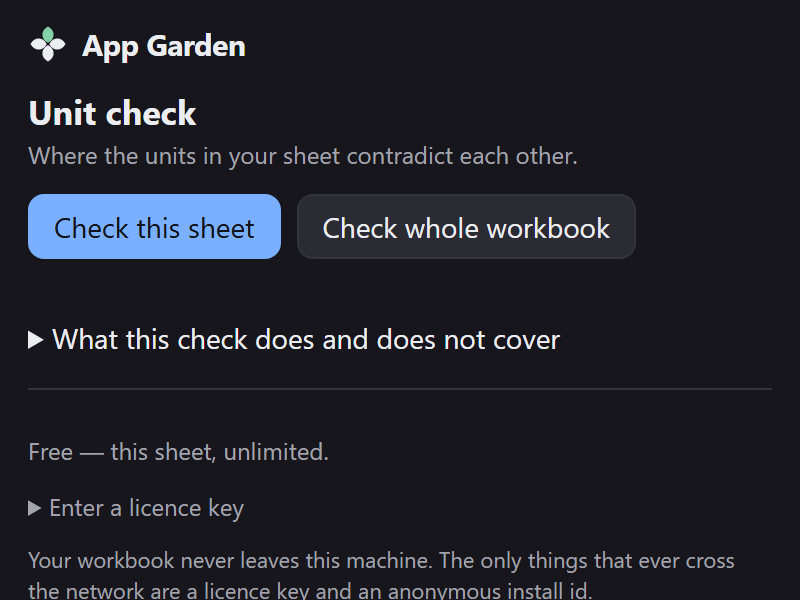
Open the workbook, then Home › Unit check. Two buttons, and a collapsed section stating the limits of the check before you have run it.
Step 2 — Check the sheet
Press Check this sheet. It reads the used range, recovers what units it can, and reports only the contradictions.
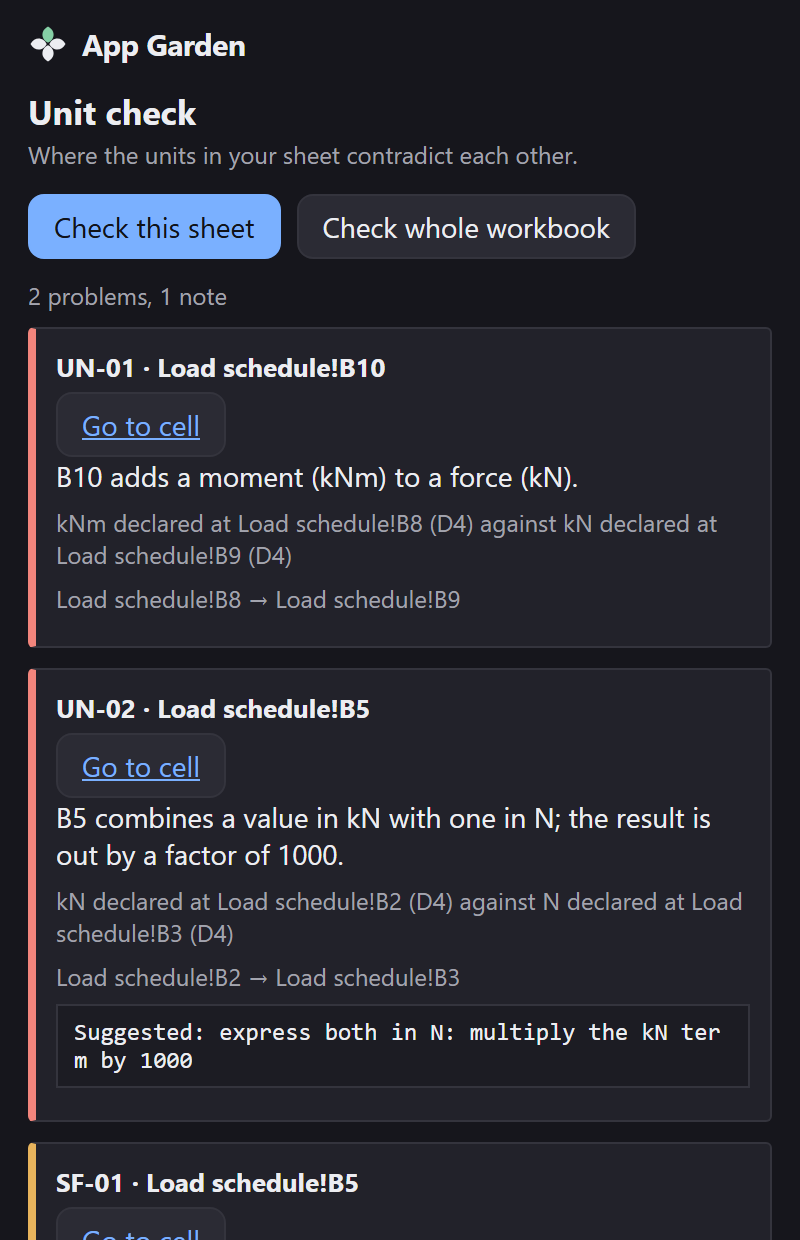
A sheet with no units in it at all produces one message saying so, not a hundred findings. And a clean result is worth as much as a dirty one: the tool is built so you can watch it stay silent on a spreadsheet you know is right.
Step 3 — Read a finding
-
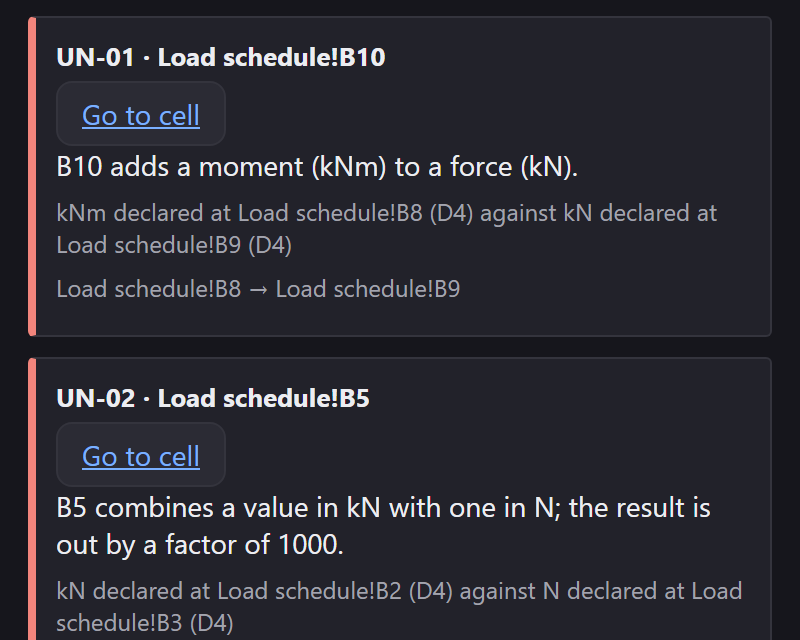
The rule and the cell.
UN-01 · Load schedule!B10. UN-01 is two quantities that cannot legally be added at all; UN-02 is the same quantity in two different prefixes. - What is wrong, in one sentence, with both units named: “B5 combines a value in kN with one in N; the result is out by a factor of 1000.”
- Where each unit came from. “kN declared at Load schedule!B2 (D4) against N declared at Load schedule!B3 (D4).” D4 is the declaration source — here, the row label. You can check the tool rather than take its word.
- The path through the formula, cell by cell.
- A suggestion, where there is an unambiguous one — express both in N, and multiply the kN term by 1000. It is a suggestion in words; nothing is written to your sheet.
Red down the left edge is a contradiction. Amber is advisory — SF-01 and
SF-02 are not about units at all, but about the digits a cell displays against the
digits behind them.
Step 4 — Ask where the units came from
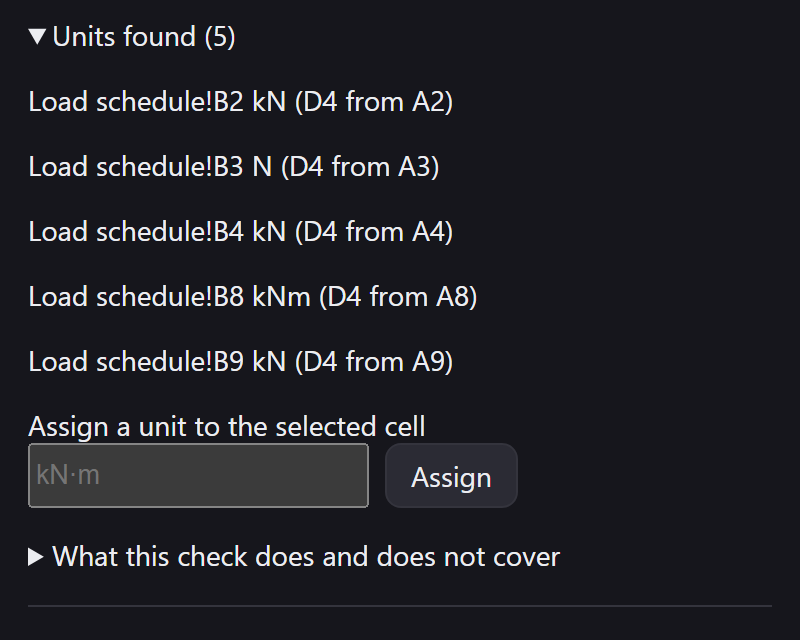
Units found lists every unit the add-in recovered, the cell it applies to, and the route it came by. On a clean sheet this list is the most useful thing in the pane; on a dirty one it is the answer to “says who?”.
Units are recovered in this order of confidence:
- A unit you assign yourself.
- A custom number format, such as
0.00" kN". - A column header, such as
Moment (kN·m). - A row label, such as
Yield stress, MPa. - A units row under the header.
- A cell note.
- A defined name, such as
Fy_MPa.
Step 5 — Write the units into the sheet Pro
The paid tier can put what it worked out back into the workbook, so the next person to open it does not have to run the add-in to see the units.
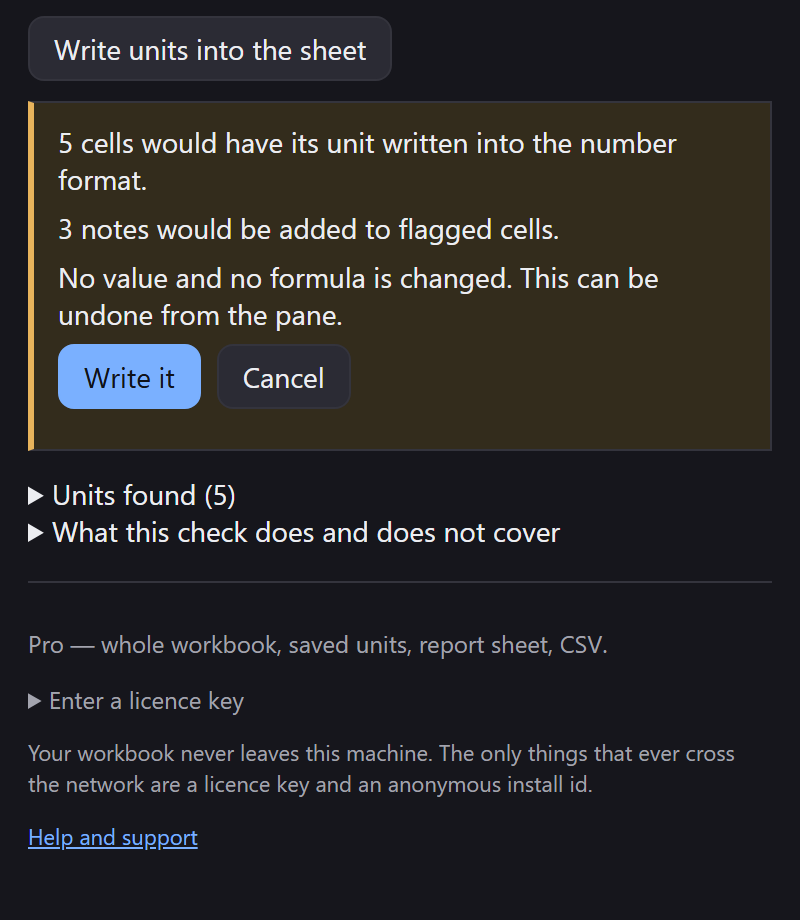
The rest of the paid tier is the whole workbook in one pass, units you assign yourself saved into the file, the report as an inserted worksheet, and CSV export.
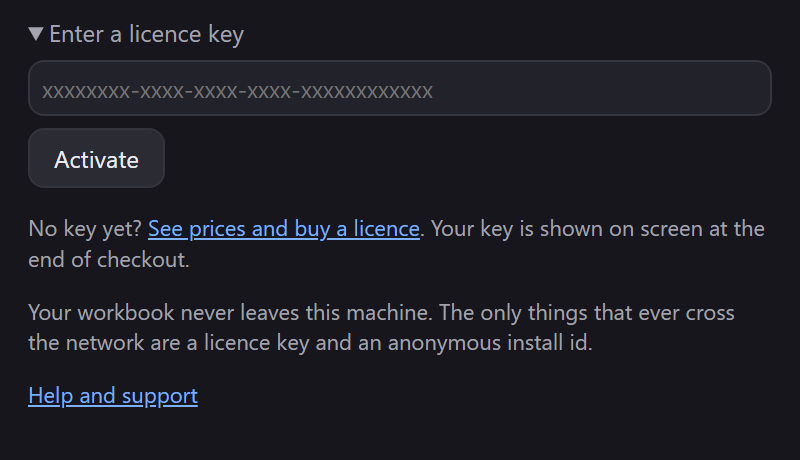
Step 6 — Entering a licence key
What it will not do
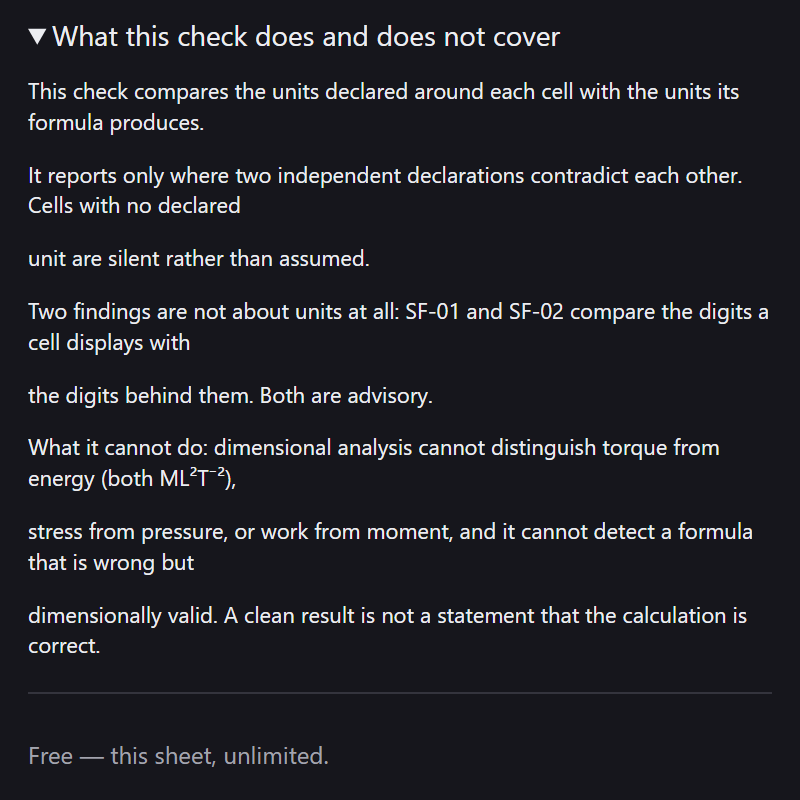
This section is in the pane as well, under What this check does and does not cover, because a checker whose limits are only on a website is a checker whose limits nobody reads.
-
It never guesses. A cell with no unit it can read stays silent rather than being
assumed. A symbol with more than one meaning —
tfor tonnes or thickness,lbfor mass or force — is reported as unreadable rather than resolved by coin toss. - It cannot tell torque from energy, stress from pressure, or work from moment. Those pairs are dimensionally identical (both ML²T⁻²) and no dimensional check can separate them.
- It cannot catch a formula that is wrong but dimensionally valid. A clean result means no contradiction was found, not that the calculation is correct. Every report says so in as many words.
- Structured table references, external workbook references, dynamic arrays, LET and LAMBDA are not interpreted. A formula using one is reported as unreadable rather than guessed at.
-
Lookups —
VLOOKUP,INDEX,XLOOKUP— produce an unknown unit, because which cell they will return cannot be known without running the sheet. - Temperatures are read, but the difference between an absolute temperature and a temperature difference is not yet enforced.
- Mac and iPad are untested. The manifest permits them and Microsoft lists them, but no verification run has happened on either. Please report anything odd.
If something looks wrong
Email support@appgarden.co.uk, and say which platform you are on and what the pane showed. A sheet that produced a wrong finding is the most useful thing you can send, and the one most wanted — but only send one you are content to share, and read the privacy notice first.