
How to clean a Xero export, and check a sheet before you upload it
A step-by-step run through the add-in in both directions. The whole check is free, both ways, and so is every explanation — and so is Undo.
Why a general cleaner is not enough
A generic data-cleaning add-in can tell you a column is text. It cannot tell you that
06/03/2026 in a Xero export is 6 March because the organisation's regional setting is
UK, that (45.00) is a negative, or that ContactName has to match Xero's
existing contact exactly, down to the trailing full stop. This one knows it is a Xero file.
Two directions, one pane:
- Out of Xero. Export dates that will not work in Excel, numbers held as text that will not sum, bracketed negatives, comma decimals, and the trailing and non-breaking spaces every export carries.
- Into Xero. A pre-flight check before you upload: missing or misspelled columns, dates in the wrong regional format, a bank statement whose amount is split across Debit and Credit, blank cells that import as zero, and contact names that will not match.
The one to know about
A contact name that does not match an existing Xero contact does not fail the import.
It creates a second contact in your live ledger — Acme Ltd alongside Acme Ltd. —
and merging them afterwards is real work in somebody's accounts. The pre-flight check groups the
near-misses before you upload, including the ones that differ only by a non-breaking space, which
Excel's own TRIM will not remove.
Before you start
- Excel on Windows, Mac, or the web. The pane is the same on all three.
- The add-in installed. See the support page for that.
- The export open in Excel. The screenshots below use a bank statement export, straight out of Xero — the moment this add-in exists for.
- Nothing leaves your machine. The add-in talks to one server, and only about your licence key. The privacy notice says so in full.
Step 1 — Open the pane and pick a direction
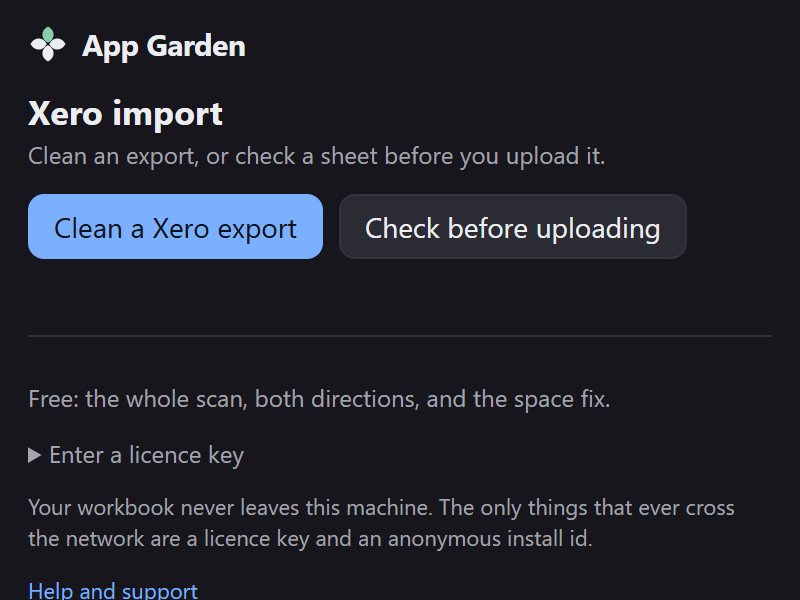
Open the file, then Home › Xero import › Check sheet. The pane opens with the two directions and nothing else.
Step 2 — Clean a Xero export
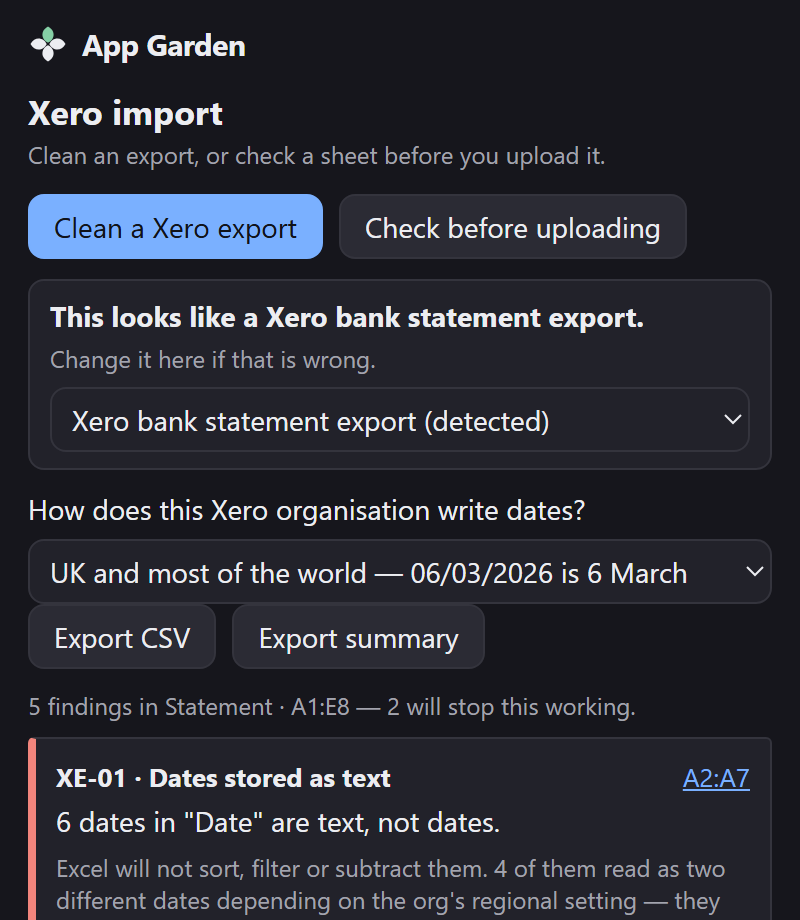
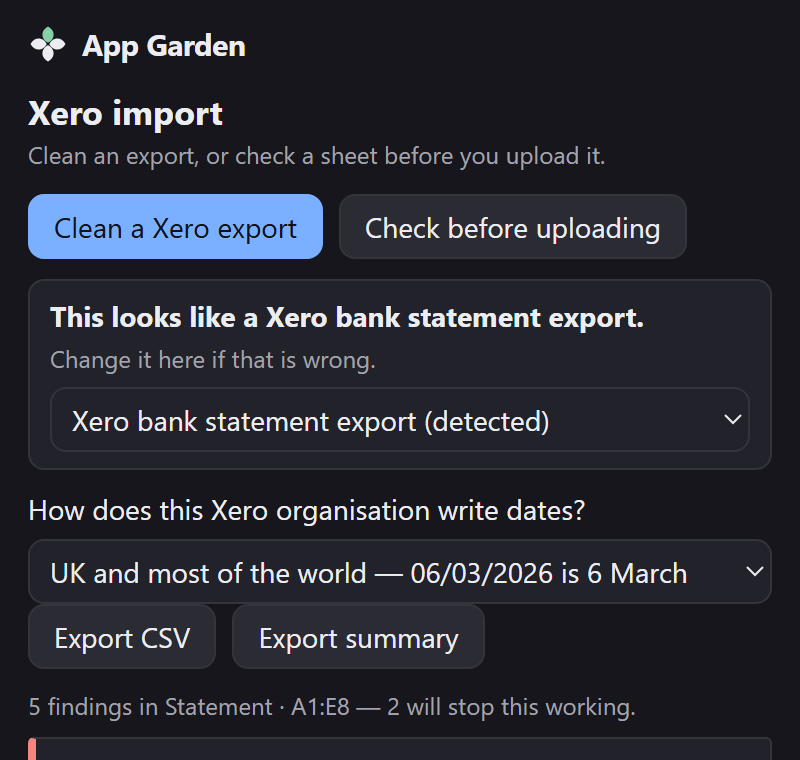
Press Clean a Xero export. The pane names the file type from its headers, asks the one thing it cannot know, and lists what is wrong in Xero's terms.
Step 3 — Answer the date question
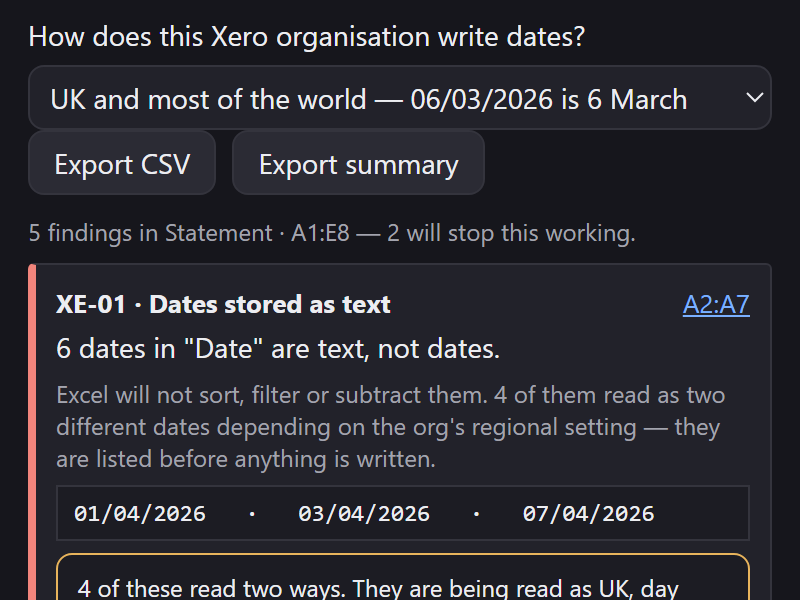
06/03/2026 is two real dates and only the organisation's regional setting says which.
Nothing inside a Xero export states it, so the pane asks once rather than guessing.
Step 4 — Read a finding
Every finding is one card, and the ambiguity is never a footnote — it is the screen.
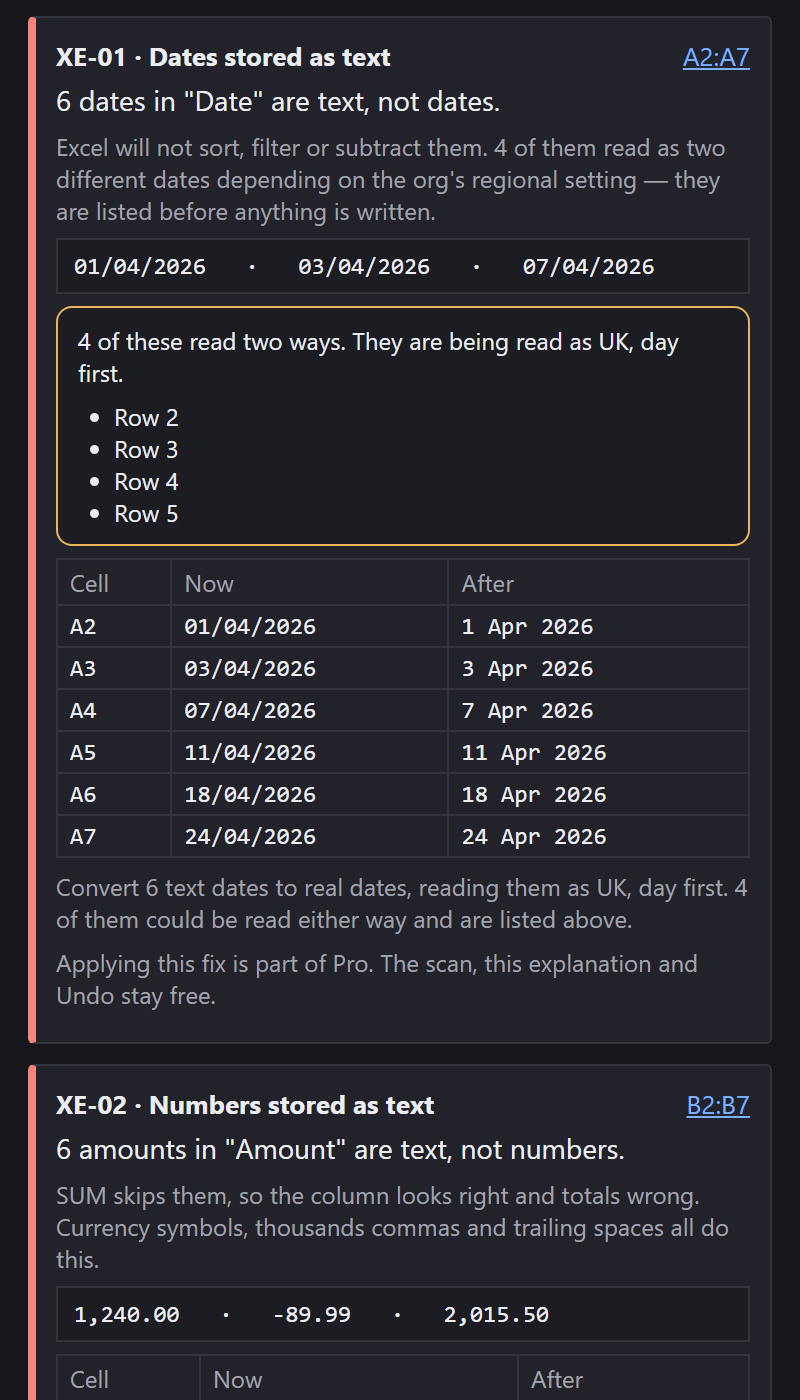
01/04/2026 now,
1 Apr 2026 after.
The range at the top right is a link — click it and Excel selects those cells. On the free tier the card ends with a line saying the fix is part of Pro, and that the scan, this explanation and Undo stay free. The preview table is shown either way, so you can make the change by hand from it.
Step 5 — Apply a fix Pro
On a paid licence the same card ends in a button. It says Apply, as previewed, because that is the guarantee: it writes exactly the table above it, and nothing else.
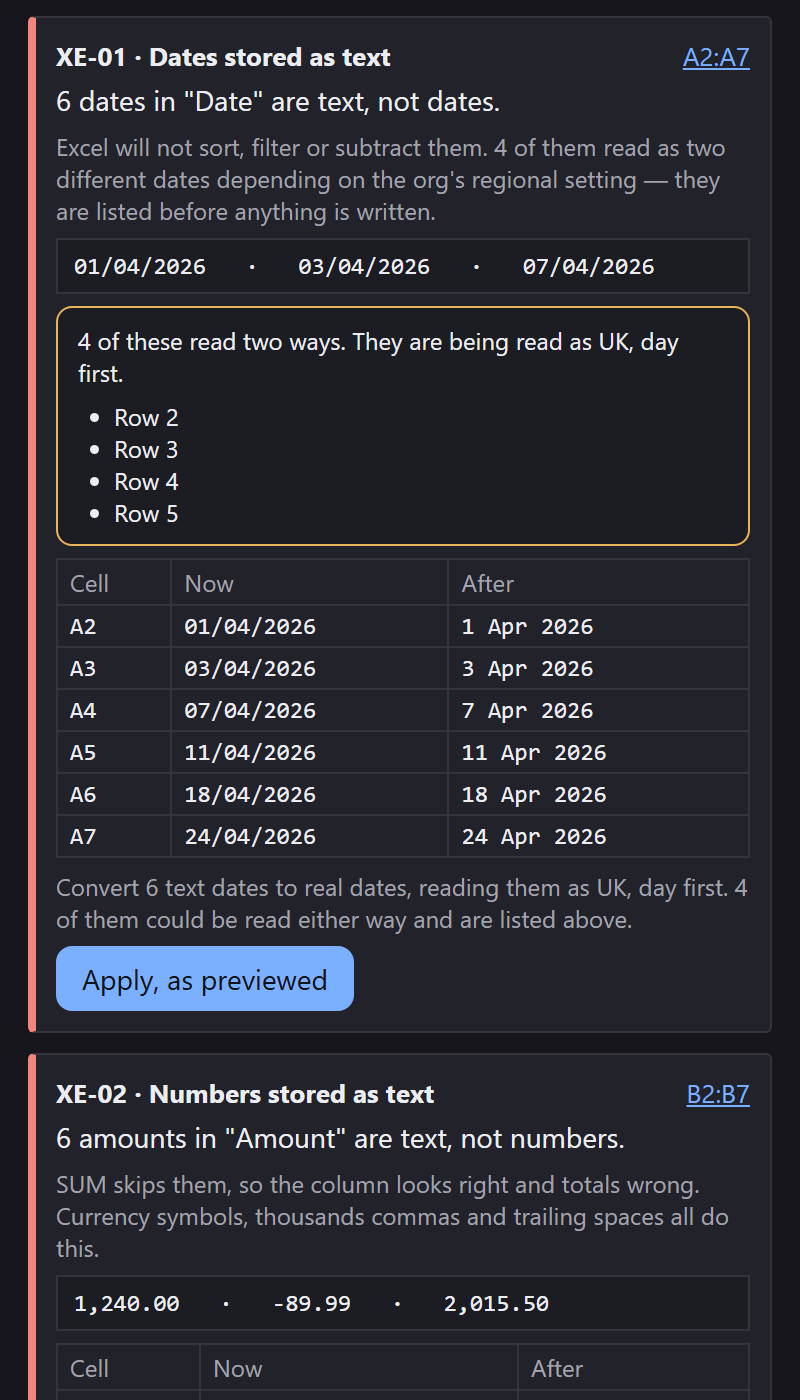
The pane writes the change, re-reads the sheet, and shows what is left.
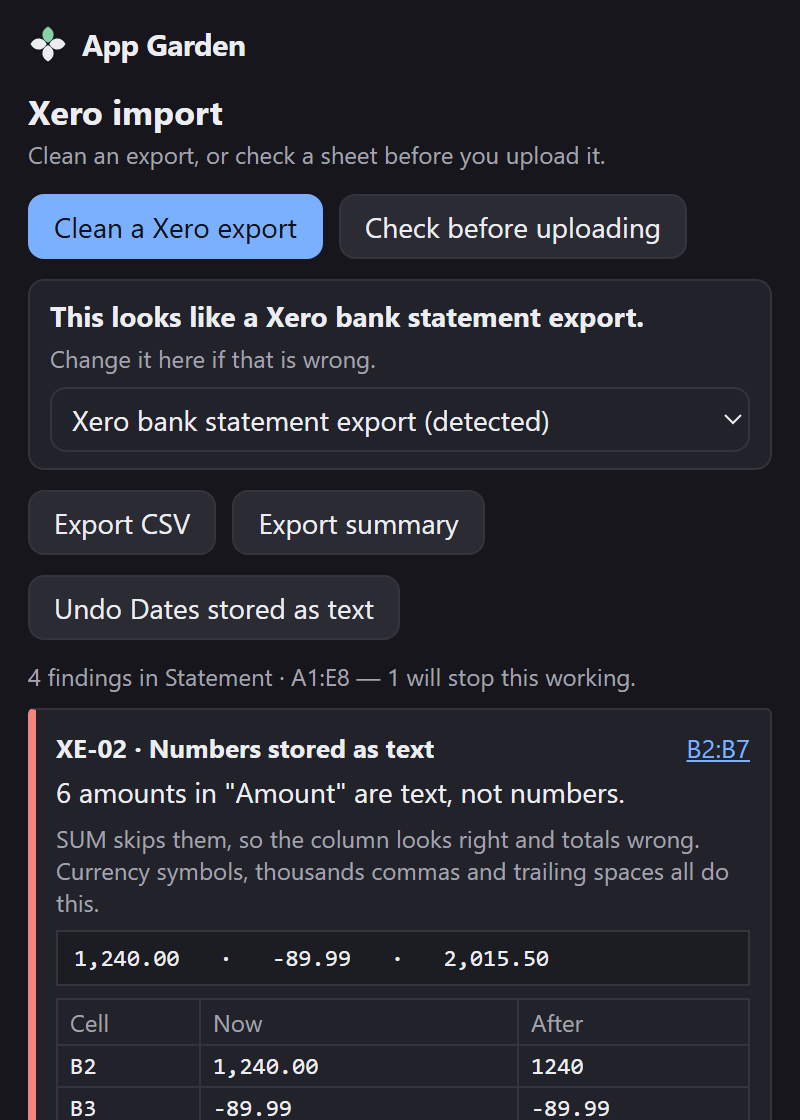
The space fix is free. Trailing, leading and non-breaking spaces are applied on every tier: they are the defect most likely to be the actual cause of an import failure, and charging for a whitespace trim would be absurd.
Step 6 — Undo
Undo is free in every tier, always. It does not lapse with a licence and it keeps working after one is cancelled. The button names the fix it will reverse.
Step 7 — Check before uploading
The other direction. Press Check before uploading and the same sheet is judged against what Xero will accept, rather than against what Excel can use.
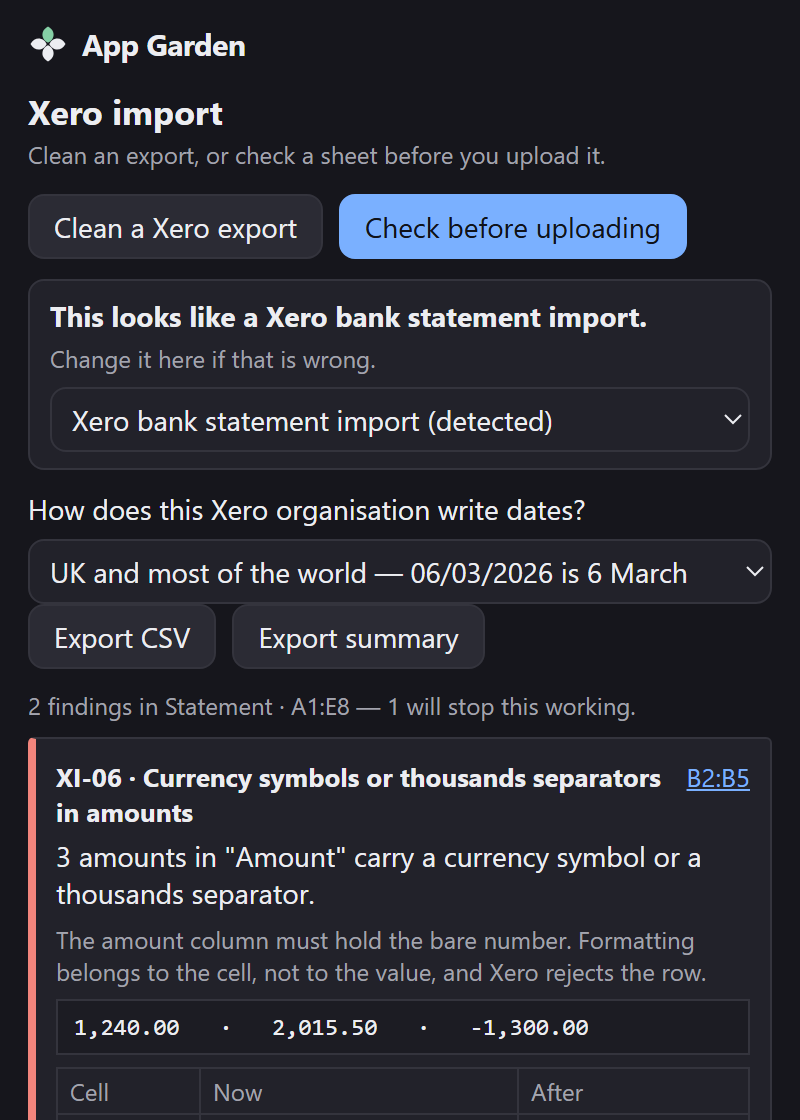
1,240.00 is fine in Excel and rejected by
Xero: the amount column must hold the bare number, because formatting belongs to the cell, not
to the value.
Run this before every upload, not after a failure. A rejected file tells you the first thing wrong with it; this tells you all of them at once.
What it checks
Each card carries a stable id — the useful thing to quote in a support email.
- Cleaning an export — dates stored as text; numbers stored as text; parenthesised negatives; trailing, leading and non-breaking spaces; a name held as one column; comma decimal separators; rows below the data and total rows inside it; and, as an advisory, a range that is not an Excel Table.
- Checking before upload — required columns missing; a header spelled differently from Xero's; dates Xero will not read, and dates not in the organisation's format; an amount split across Debit and Credit; no negative amounts on a bank statement; a decimal separator that is not a period; currency symbols or thousands separators in amounts; blank cells that import as zero; contact names that will not match; line breaks inside cells and text read with the wrong encoding; and values over Xero's per-field limit.
When it will not help
- Detecting the organisation's date format. Nothing inside a Xero export states it. The pane asks once, then reports every ambiguous value it acted on.
- The file on disk. It reads the active sheet, so a file's encoding is not visible to it. What it can see — a line break inside a cell, or text already mangled by being opened as Latin-1 — it reports.
- A date it cannot parse. Explained rather than guessed at. A wrong date posted to a ledger is worse than a date the tool declined to touch, so values it cannot read are never rewritten.
- Xero's field limits as at this morning. They change from time to time and live in a data file inside the add-in, correct as at the build date.
- Mac and iPad are untested. The manifest permits them and Microsoft lists them, but no verification run has happened on either. Please report anything odd.
Exporting what it found
Export CSV gives you a row per finding for a spreadsheet or a ticket, and Export summary gives you Markdown to paste into a message. Both export the check you are looking at, not a fresh one, so the file always agrees with the screen.
Also for Google Sheets™: Import Cleaner for Xero for Google Sheets. The same licence key works in Excel™ and Google Sheets.
If something looks wrong
Email support@appgarden.co.uk, and say which platform you are on and what the pane showed. If a check reported something you believe is wrong, the file itself is the most useful thing you can send — but only send one you are content to share, and read the privacy notice first.