
How to import a Xero™ CSV into Google Sheets™ without breaking dates
Most Xero™-to-Google Sheets™ problems are made at import time, in the ten seconds the CSV opens. Get the import right and the dates, amounts and references arrive intact. Here is the safe path.
The safe import
- Open a blank spreadsheet and check File → Settings → Locale matches your Xero™ organisation's country.
- Choose File → Import → Upload, select the CSV, and set the import location to a new sheet.
- Untick "Convert text to numbers, dates and formulas". This is the step that matters: with it ticked, Google Sheets™ reinterprets every date using the spreadsheet locale, and a UK 06/03/2026 can become 3 June.
- Import, then check one date you already know before doing anything else.
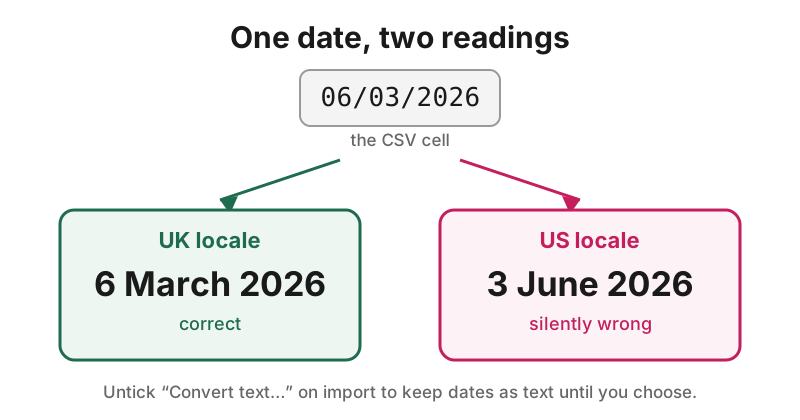
Avoid double-clicking the CSV in Google Drive™ and opening it with Google Sheets™: that converts it using your account locale, with no box to untick.
After the import
- Confirm a couple of known dates and one total against Xero™.
- If the dates are already wrong, re-import rather than fixing them by hand. Hand-fixing a swapped column is slow and error-prone, and you can never be sure which dates were ambiguous.
- Then scan the file: dates are only one of the ways an export can bite.
Scan it before you build on it
Import Cleaner for Xero checks a Xero™ export for broken dates, amounts that will not add up and contact names that would create duplicates. The full scan, every explanation and Undo are free, and your data stays in your Google™ account.
Install from the Google Workspace Marketplace™
Google, Google Sheets™, Google Drive™ and Google Workspace™ are trademarks of Google LLC. Not affiliated with, endorsed by or sponsored by Xero Limited. Xero is a trademark of Xero Limited. Import Cleaner for Xero is not affiliated with or endorsed by Google.
Google, Google Sheets™ and Google Workspace™ are trademarks of Google LLC. Not affiliated with, endorsed by or sponsored by Xero Limited. Xero is a trademark of Xero Limited. Import Cleaner for Xero is not affiliated with or endorsed by Google.